Usage Limits
Configure usage limits in the workspace, edit usage tiers, and manage upgrade requests
Usage tiers let you set personal limits for five usage categories. Running or simultaneously started bot recordings can exceed the meeting limit.
Usage tiers
There are six usage tiers: “Very low”, “Low”, “Medium”, “High”, “Very high”, and “Unlimited”. The “Unlimited” tier has no personal limits. Your plan and organization balance still apply.
Limits
Per usage tier, you can configure limits for:
- Text generation
- Using Chats, running Workflows, using Assistants, and the in-app assistant Buddy
- Background actions also count here: document search and website reading during a chat or assistant answer, ingesting/indexing documents into a data pool, and generating text embeddings
- Image generation
- Using the Image Generator
- API usage
- Using the MeinGPT API, including the Outlook add-in. The add-in signs in with a personal API key and therefore counts as API usage, not text generation - regardless of the selected model. If this category's limit is €0.00, the add-in doesn't work for members of that tier.
- Other
- Manual audio/video uploads, browser recordings, and their summaries
- Using the Translator
- Meetings
- Bot recordings, including transcription and the standard summary
Setting a category's limit to €0.00 fully blocks that category for the affected usage tier. Even the very first attempt in that category (e.g. the first image-generation try) triggers "usage limit reached" — regardless of whether anything in that category was used before.
Meeting limit and shared balance
The meeting limit applies per person and calendar month. An empty field means no personal limit; €0.00 prevents new bots from joining. Existing usage tiers initially have no meeting limit. You can set one under Edit and confirm the change.
Costs are assigned to the internal organizer if their account is active and a member of the workspace. Otherwise, they count toward the person who scheduled the bot. Even if several people invite the same bot, the meeting is charged only once.
All bot costs come from the shared workspace balance. The personal limit does not provide additional credits. Before joining, the system checks whether the limit has already been reached; a recording in progress is not stopped. Running or simultaneously started recordings can therefore exceed the limit.
When limits reset
Usage-tier limits reset automatically at the start of every calendar month (UTC midnight on the 1st). All usage counted toward a member's tier — across all five categories — is set back to zero at that point.
Note
If your usage overview is visible, you can see the exact reset time under Settings > Profile.
From an admin’s perspective
Adjust usage limits
Open Settings → Usage limits. The overview shows usage tiers, assigned members, and their budgets.
Edit limits
Click Edit. Set the five categories in euros for each configurable usage tier. Leave the Meetings field empty for unlimited usage.
Check the total budget
If any category is unlimited, the per-user total is also shown as unlimited. A finite total requires every category to have a limit.
Confirm the change
Save and confirm the change. It applies to every member assigned to that usage tier.
Show usage without personal limits
Under Settings → Usage limits, you can enable Show usage without personal limits. Confirm the change in the dialog. It applies to the whole organization and is off by default.
When all five personal limits are unset for a member, their usage overview stays hidden in the sidebar and profile by default. Meeting-bot costs do not reveal it automatically. The overview appears only after you enable this setting. If at least one personal limit is set, the overview appears regardless of this setting. A €0.00 limit also counts as a set limit.
For All-inclusive plans, personal usage always stays hidden. This setting is not offered for those plans.
This setting only changes visibility. Billing, applicable limits, and organization reports remain unchanged.
Show model usage
Under Settings → Usage limits, you can enable Show model usage. Confirm the change in the dialog. It applies to the whole organization and is off by default.
When enabled, members see the cost per model used, in euros for the current month, below each category under Settings → Profile. Only charged credit transactions with a recorded model are included. Free models and transactions without a model do not appear. The Meeting bots category has no model rows.
The model view appears only where the usage overview is visible (see above). The setting is not offered for All-inclusive plans. It only changes visibility; billing and limits remain unchanged.
Assign usage tiers
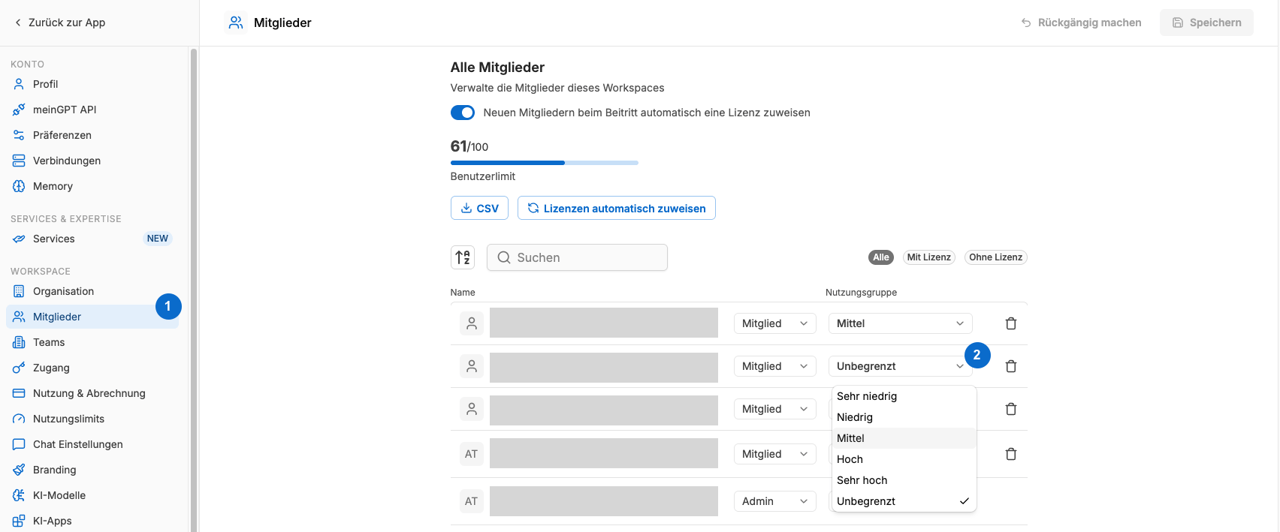
You can set usage tiers one by one, for several members at once, or as a default for new members:
Step 1
In Settings, navigate to Members.
Step 2
There, you can assign individual users to different usage tiers.
Several members at once: In Settings > Members, select multiple members with the checkboxes, open More actions, and click Change usage tier. Pick the tier and confirm the dialog. Workspace admins can do the same in a team's member list (Settings > Teams, open the team, Manage Members).
Default for new members: Under Settings > Usage limits, the Workspace default sets the tier that new members start in. Users without an explicit assignment use this default. The Individual assignment card on the same page links to the member list with Go to members list.
Handle upgrade requests
Admins are notified about open upgrade requests in the sidebar:

In the lower section of Settings > Usage limits, admins can approve or reject user upgrade requests:
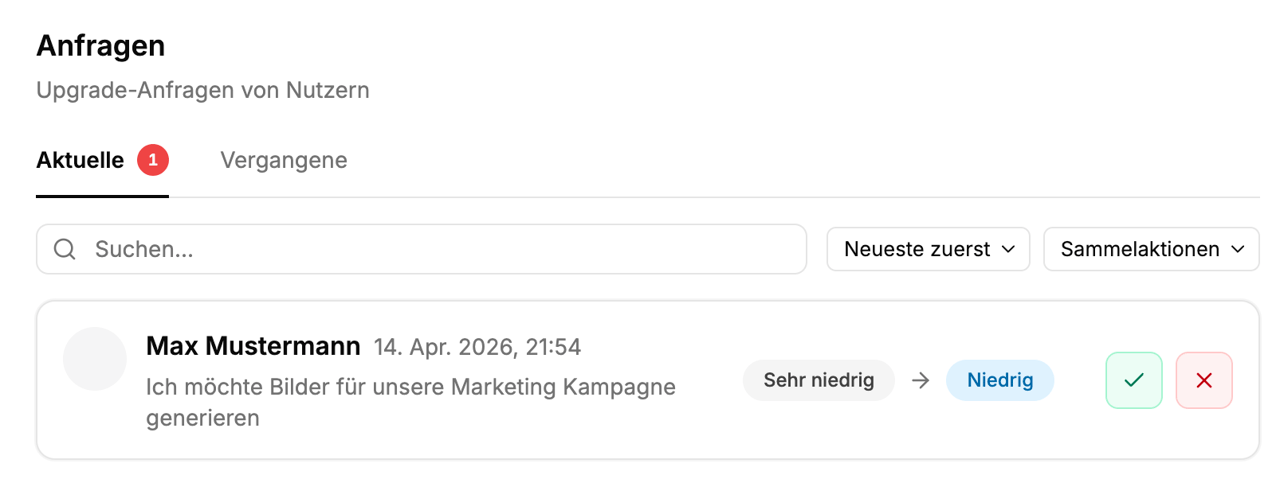
On the Current tab, select one or more requests with the checkboxes (or Select all), then click Approve (n) or Reject (n) in the toolbar. The action runs immediately for all selected requests, with no confirmation and no note. Select all only covers the requests visible after your search. To handle a single request, click the check icon in its row to approve it right away, or the X icon, which opens the Reject request dialog where you can add an optional note for the requester.
Note
Users are notified via email when their upgrade request is approved or rejected.
The history of past requests is available under Past.
Auto-approve upgrade requests
Instead of reviewing every request manually, admins can turn on “Auto-upgrade” at the top of Settings > Usage limits. When enabled, upgrade requests are approved automatically — instantly, without any admin action — as long as the requested tier is at or below the tier set under “Auto-approve up to”. Requests asking for a tier above that ceiling still land in the manual queue described above.
Note
This is the fastest way for users to get unblocked on their own: with auto-upgrade on and a high enough ceiling, a user who hits their limit can request the next tier and keep working immediately, with no admin round-trip.
From a user’s perspective
View usage limits
The sidebar shows a compact usage overview; your profile shows a breakdown by category. It is hidden for All-inclusive plans. For other plans, it is visible when at least one personal limit is set or an admin has enabled usage visibility without personal limits.
Limits in the sidebar
Under Usage, each category with a personal limit above €0 has a colored bar segment. Its width reflects the limit, and its fill reflects the used proportion. Exceeding a limit does not fill other categories' segments. A €0 limit has no bar segment and does not trigger a warning icon. In the detail table, the category is muted and has a lock beside its name. A tooltip on the lock explains the restriction. Existing spending remains visible.
Hover over Usage or click it to open Usage this period. With a keyboard, focus the trigger and press Enter. The table shows Text, Images, API, Other, and Meeting bots, with usage and limits side by side.
What the table shows: The values are your personal, billed usage in the current calendar month (UTC, resetting on the 1st). It is neither a rolling 7-day figure nor the usage of the whole workspace. Only bookings charged to the balance are counted; usage of free models and usage that your plan covers at a flat rate without charge does not appear here. Usage by scheduled tasks and other automatically started runs draws on the workspace balance but is not assigned to any of the five categories, so it does not appear in this table. A row shown in red means the personal limit for that category has been reached.
Categories without a personal limit appear only in this table. Their usage is shown in euros and their limit as “—”. They contribute neither to the bar nor to the percentage. If all limits are unset and an admin has enabled the overview, only the Usage trigger remains to open the details. No bar or percentage appears.
For limits above €0, the warning icon beside the percentage turns yellow when any category reaches at least 90% of its limit and red when it reaches the limit. The affected category and usage amount receive the corresponding color in the table. An exhausted organization balance can also trigger a warning icon. Your plan and organization balance still apply.
Limits in the profile
Step 1
In Settings, navigate to Profile.
Step 2
If your usage overview is visible, you can see your usage tier, usage and limit per category (Text, Images, API, Other, Meeting bots) as bars, and the next reset time here. If an admin has enabled model usage, the cost per model also appears below each category. In the sidebar, the Show details link in the usage popover takes you here.
Step 3
Here you can request an upgrade to the next higher usage tier unless you are already in the “Unlimited” tier.
Warnings
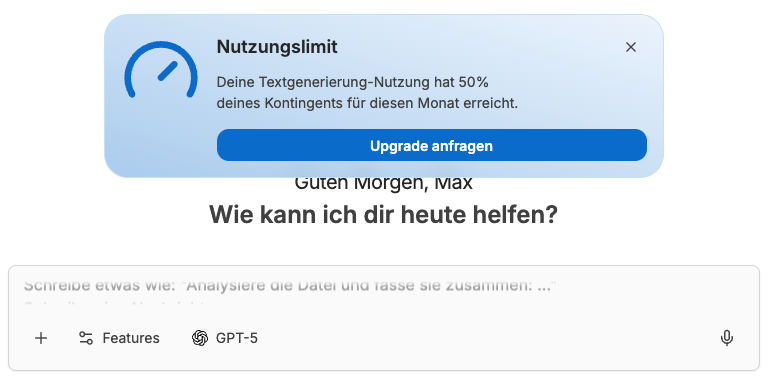
Users see a warning when they reach 50%, 75%, and 95% of their limit. The message includes a button to request an upgrade to the next higher tier:
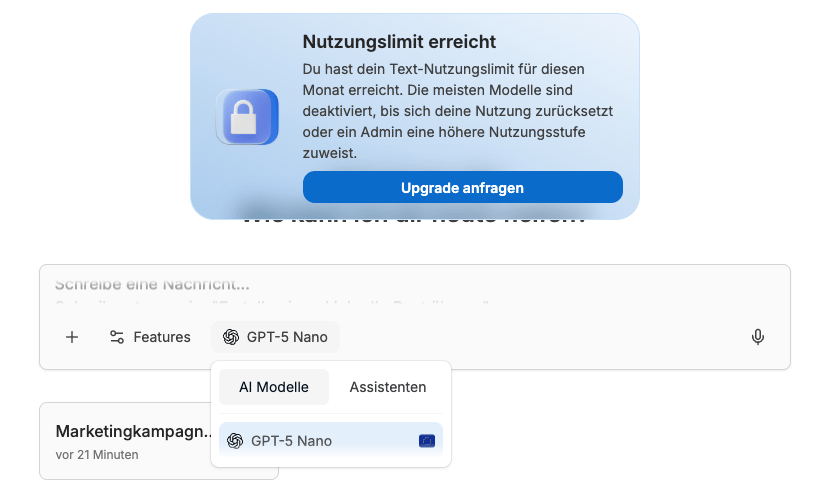
When you reach your text limit, another warning is shown. You can then only chat with a free model:
Request an upgrade
In the dialogs shown above, or under Settings > Profile, users can request an upgrade to the next higher usage tier:
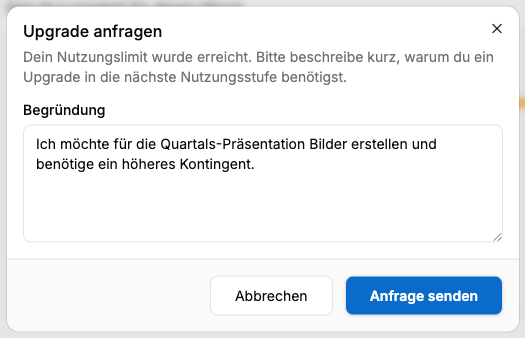
The workspace admins will be notified about the request and can process it.