Generate Images
Introduction
Note
The image generation tool on the MeinGPT platform lets you create images for various purposes using AI. Describe what you want in a prompt, or start from a guided idea, and choose between different models to get exactly the result you need.
Step-by-Step Guide
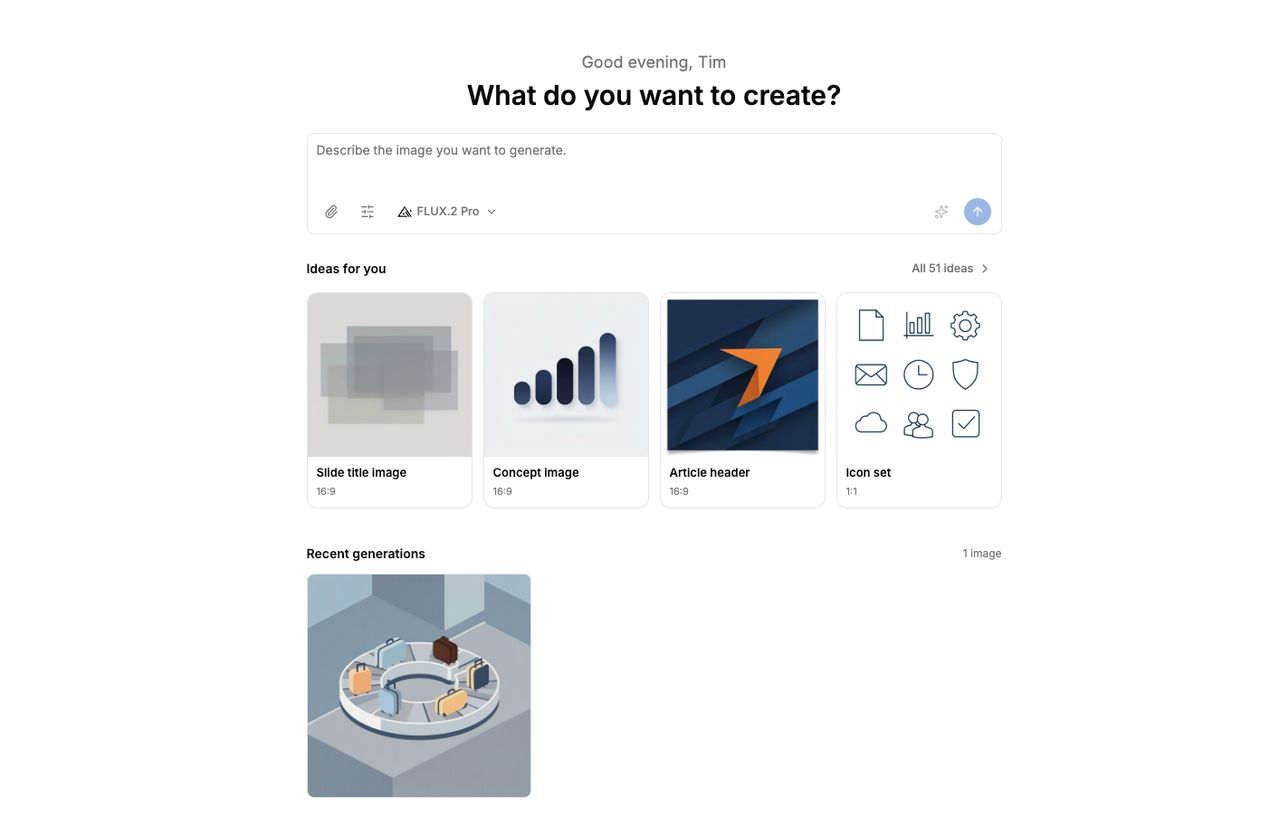
Open the Images app
Go to Apps in the sidebar and select Images. Your most recent generations are shown below the prompt box.
Write a prompt
Describe the image you want in the text field. Be precise and specific:
- Describe colors, mood, and style: If you want a specific color palette, mood, or style direction, add these details.
- Use context and details: Context like "professional", "playful", "modern" etc. can help the AI interpret your description.
Tip
Example of a good description: "A minimalist, modern living room with white walls, a gray sofa, a small wooden table, and a large window with lots of natural light."Or start from an idea
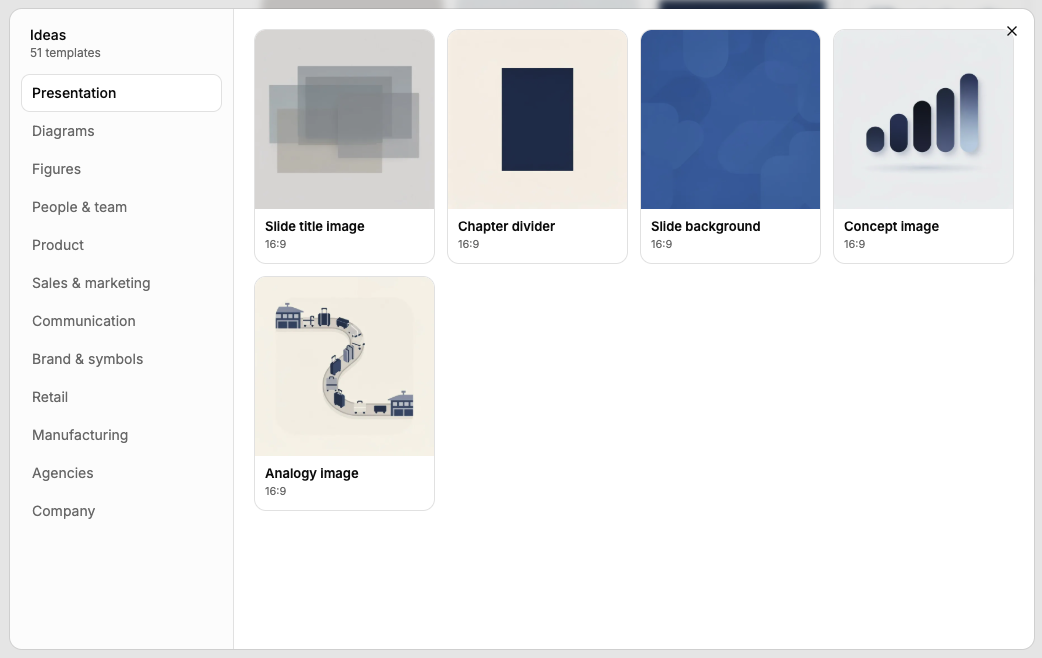
Not sure how to phrase your prompt? A row of idea suggestions sits under the prompt box. Click Open all ideas to browse the full catalogue, organized into categories such as Presentation, Diagrams, Figures, People & team, Product, Sales & marketing, Communication, Brand & symbols, Retail, Manufacturing, Agencies, and Company.
Pick an idea and you're asked one plain-language question (for example, for a slide title image: "What is the slide about?"). Depending on the idea, you can also choose a look — for example Geometric, Soft, or Photographic — or the idea already has a fixed style. Answering assembles a complete prompt that you can still see and edit before generating.
Note
Some ideas (for example a headshot or a product placed in a scene) need a reference photo. If your selected model doesn't support reference images, or you haven't uploaded one yet, the idea tells you so instead of just failing silently.
Choose a model
Pick the model for this generation from the model dropdown next to the prompt box. Currently available:
- FLUX.2 Klein — fast and inexpensive for simple images
- FLUX.2 Pro — good balance of quality and speed
- FLUX.2 Flex — Black Forest Labs' most configurable FLUX.2 model for prompt control; on MeinGPT it uses the same fixed Aspect ratio presets as every other model (see below), not a separate resolution setting
- FLUX.2 Max — highest quality in the FLUX.2 line
- FLUX 1.1 Pro — previous generation, still available
- FLUX.1 Kontext Max — specialized for reference-image editing (targeted changes to an existing image)
- GPT Image 1 / GPT Image 1 Mini / GPT Image 1.5 / GPT Image 2 — OpenAI's image models
- Gemini 2.5 Flash Image / Gemini 3 Pro Image — Google's image models, publicly also known as "Nano Banana" and "Nano Banana Pro"
Hovering a model shows a quality rating, price, and hosting region. See All models for exact per-image pricing.
Note
Your workspace admin decides which of these models are enabled and which one is preselected — see Manage image models. You may see fewer than the full list above.
Adjust generation settings
Open the settings button next to the model picker to set:
- Aspect ratio — Square, Landscape, or Portrait
- Number of images — 1, 2, 3, or 4
- Output format — JPEG, PNG, or WEBP. Generated images carry signed Content Credentials in their metadata (C2PA and XMP) that identify them as AI-generated. The marking is not visible in the image and stays on the file when you download it. You can check it with Content Credentials Verify (C2PA) or with
exiftool(XMP).
Note
Labelling when you publish: Content Credentials are a machine-readable marking inside the image file. MeinGPT does not add a visible label, watermark or notice text to the image itself. Metadata can be lost, for example through screenshots, re-saving in some programs, or uploading to platforms that strip it. Whether you must additionally label an image as AI-generated in a visible way when you publish it depends on how you use it and is your responsibility; the app reminds you of this when you create images. This page is not legal advice. Have your obligations confirmed legally if needed.
Note
Maximum resolution: pixel size is fixed per model and orientation — there's no free-form resolution input. GPT Image models produce the largest images (1536×1024 / 1024×1536 for Landscape/Portrait, 1024×1024 for Square); all FLUX and Gemini models cap out at 1024×1024 for Square and 1024×576 / 576×1024 for Landscape/Portrait.
Tip
If you're not satisfied with the result, generate again with the same settings for a new version — nothing is overwritten, every generation is kept in your history.
Attach a reference image (optional)
Click the attach button to upload a reference image, or drop one directly onto the prompt box. Most models accept reference images — how many you can attach at once depends on the model, from one up to sixteen. Accepted formats are JPG, PNG, GIF, and WEBP, up to 25 MB per file.
You can also reuse one of your own generated images as a reference for the next one — either from its grid tile or from the drawer (see below).
Generate
Click the send button (or press Enter — Shift+Enter for a new line) to start the generation.
Managing a generated image
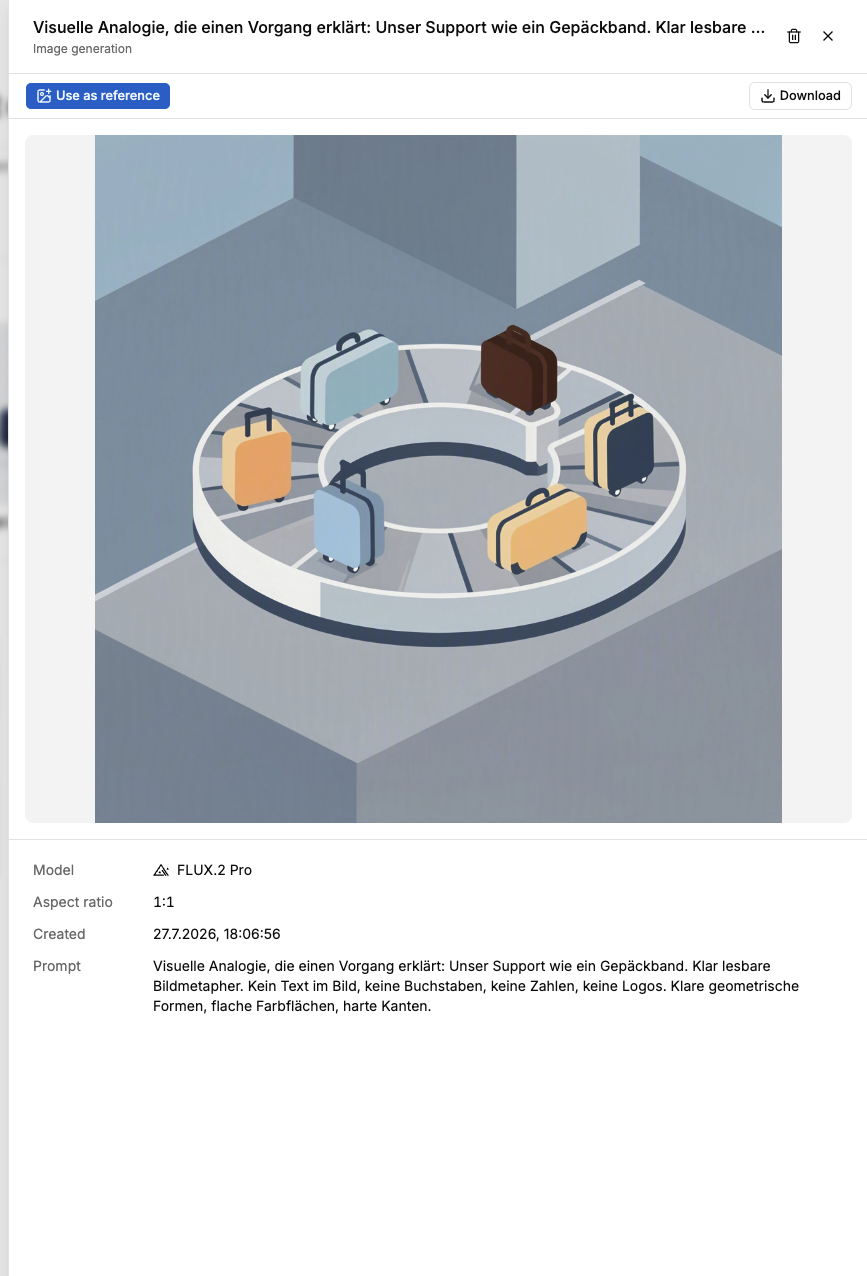
Click any image to open it: you get the full-size result, its generation details (model, aspect ratio, date, prompt, and any reference images used), and three actions:
- Download — saves the image as originally generated.
- Use as reference — carries this image into the prompt box as a reference for your next generation. Also available as a quick action directly on the image's tile in the grid, without opening it first.
- Delete — removes the generation for good.
Note
There's no in-app editing (crop, color adjustment) once an image is generated. For a different composition, crop, or color treatment, generate again — optionally using the current image as a reference.
Image generation in chats and assistants
When the Image generation tool is enabled in a chat or on an assistant, the model creates images directly in its reply. The following applies:
- Each call produces one image, shown inline in the chat. The formats 1:1, 9:16 and 16:9 are available.
- The image model is the default model your workspace admin sets under Manage image models, not the assistant's language model.
- Images you attach to your message (for example a logo or product photo) are used automatically as references if the image model supports reference images. An image generated earlier in the chat can be reused as a reference for a revision. In chat, up to four reference images per call are possible.
- Image models place logos and text only approximately and do not always reproduce them faithfully.
- If a logo must always appear in the same place and unchanged, add it with a skill in the code sandbox (for example with Pillow) to an image that is attached to the chat as a file. The sandbox cannot open an image generated in the chat by itself: download it and attach it to a new chat.
Try it
Open ImagesDescribe an image, or pick an idea, and see how the prompt comes together.ÖffnenFrequent questions
Can I edit a generated image — crop it, remove an object, adjust colors?
Not in the app. Once an image is generated you can view it, download it, delete it, or reuse it as a reference for a new generation — for a different crop, composition, or color treatment, generate again.
Where did the style dropdown go?
Style is now part of picking an idea: choosing an idea walks you through a short question and, where relevant, a look/style choice, then assembles a prompt you can still edit. You can also just describe a style directly in your own prompt without using an idea at all.
Can I see all my past generations?
Yes — the grid on the Images page shows your most recent generations; click View all once you have more than a handful to see the full history.