Manage image models
Choose which image generation models are available in your workspace, set a default, and keep an eye on prices
Which image generation models your users can pick from, and which one is preselected, is something you configure under Settings → Image models.
Note
This page is admin-only. Non-admin users go straight to the image generator and see only the models you've enabled here.
What's on the page
Models are grouped by maker (Black Forest Labs, OpenAI, Google Vertex). Each row shows:
- Premium badge when the model is billed at premium rates (see Pricing).
- Reference-image icon when the model supports image-to-image / reference editing.
- Deprecated badge when the provider has flagged the model as on its way out.
- Preview badge for models not yet officially released.
- Data processing with region (EU, US, Global) and country flag.
- Hosted by … with the actual hosting provider routing the model — for example Microsoft Azure, Black Forest Labs, or Google Vertex. Maker and host can differ: Flux 2 Pro and Flex run on Microsoft Azure even though the model itself comes from Black Forest Labs.
- Quality stars (1–5) as an indication of image quality: thousands of users rate image models pairwise, and the stars summarize the outcome. More stars usually means more realistic and detailed images at comparable prompts. We derive the values from a public comparison platform and update them occasionally.
- Price per image at the standard 1024×1024 resolution, in Euro including our 20 % margin.
For a compact hosting list across all providers see AI models and providers.
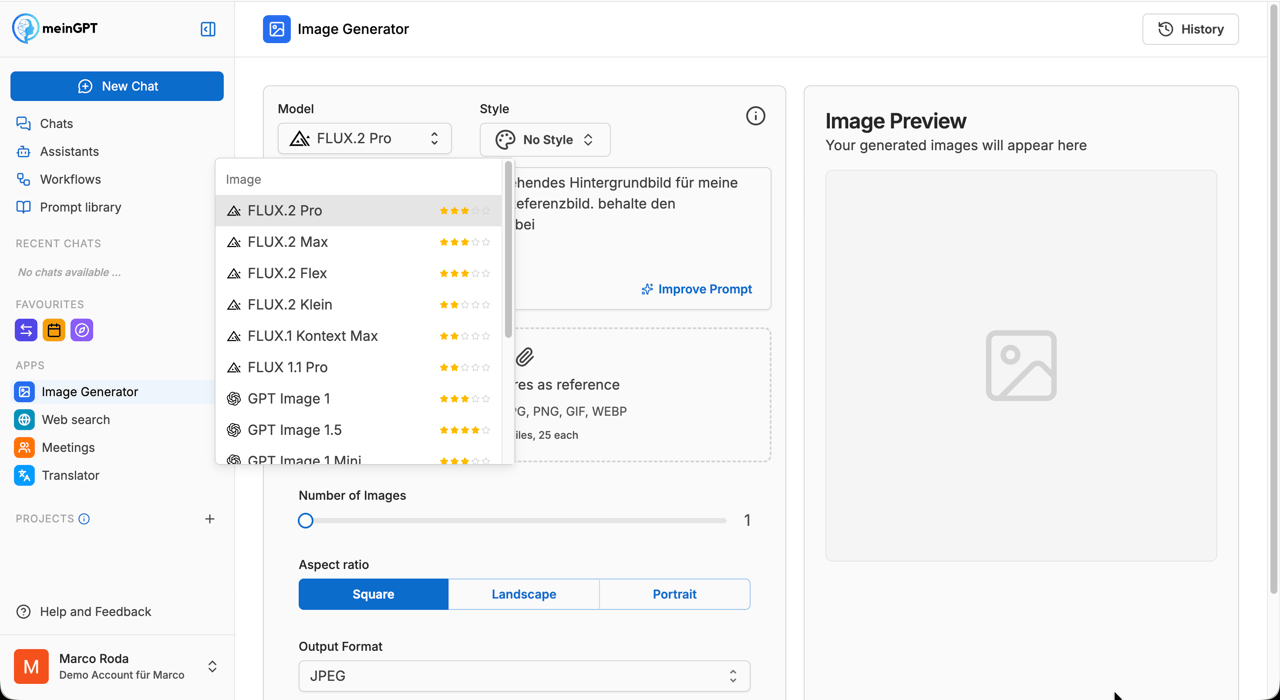
A dedicated Default model panel sits at the top with a dropdown over all enabled models. Whatever is selected here is preselected when a user first opens the image generator.
Enabling and disabling models
Use the toggle on the right of each row. A few rules:
- At least one model must stay enabled. The UI locks the toggle on the last remaining model.
- You can't directly disable the default model. If you try, a dialog asks you to pick a replacement default from the still-enabled models. The change goes through atomically — the default flips and the original model deactivates in one step.
- Enabling without a default: if you enable a model while no default is set (e.g. during first-time setup), that model automatically becomes the default.
Which model when
A rough guide. Actual fit depends on the use case.
| Use case | Recommended models |
|---|---|
| Top image quality, photorealism | GPT Image 2 (5 stars, EU), GPT Image 1.5 (4 stars, Global), Gemini 3 Pro Image (4 stars, Global), FLUX.2 Max (3 stars, EU, premium) |
| Fast and cheap (sensible default for staff) | FLUX.2 Pro (Azure, EU), FLUX.2 Flex (Azure, EU), Gemini 2.5 Flash Image, GPT Image 1 Mini |
| Cheapest option for bulk generation | FLUX.2 Klein (EU) |
| Reference editing ("change this image for me") | FLUX.1 Kontext Max, GPT Image 2, all other FLUX.2 variants |
| Strict EU-hosting required | All FLUX models (Pro, Max, Flex, Klein, Kontext Max, 1.1 Pro), Gemini 2.5 Flash Image, GPT Image 2 |
Attention
Image generation consumes credits — how many depends on the model and resolution. Any monthly credit allowance is consumed first, then your purchased balance. Details in Pricing.
Full model overview
Status: May 2026. Treat the stars as rough guidance, higher values usually mean better image quality in public user comparisons. They are no substitute for testing the model on your actual use case. Prices per image: see Pricing.
| Model | Maker | Hosted by | Region | Reference editing | Premium | Stars |
|---|---|---|---|---|---|---|
| FLUX.2 Pro | Black Forest Labs | Microsoft Azure | EU | yes | no | ★★★ |
| FLUX.2 Max | Black Forest Labs | Black Forest Labs | EU | yes | yes | ★★★ |
| FLUX.2 Flex | Black Forest Labs | Microsoft Azure | EU | yes | no | ★★★ |
| FLUX.2 Klein | Black Forest Labs | Black Forest Labs | EU | yes | no | ★★ |
| FLUX.1 Kontext Max | Black Forest Labs | Black Forest Labs | EU | yes | no | ★★ |
| FLUX 1.1 Pro | Black Forest Labs | Black Forest Labs | EU | no | no | ★★ |
| GPT Image 1 | OpenAI | Microsoft Azure | Global | yes | yes | ★★★ |
| GPT Image 1.5 | OpenAI | Microsoft Azure | Global | yes | yes | ★★★★ |
| GPT Image 1 Mini | OpenAI | Microsoft Azure | Global | yes | no | ★★★ |
| GPT Image 2 | OpenAI | Microsoft Azure | EU | yes | yes | ★★★★★ |
| Gemini 2.5 Flash Image | Google Vertex | Google Vertex | EU | yes | no | ★★★ |
| Gemini 3 Pro Image | Google Vertex | Google Vertex | Global | yes | no | ★★★★ |
Note
GPT Image 2 is the only OpenAI image model hosted in the EU. The other GPT Image variants (1, 1.5, 1 Mini) run Global. If you need strict EU hosting and want OpenAI as the maker, GPT Image 2 is the only option.
Note
Maker ≠ host. FLUX.2 Pro and FLUX.2 Flex come from Black Forest Labs but run through our Microsoft Azure tenant in France (EU). The other FLUX models (Max, Klein, Kontext Max, 1.1 Pro) run directly at Black Forest Labs (EU). GPT Image models are made by OpenAI but served via Microsoft Azure. This split matters if you have to exclude specific processors for compliance reasons.
Prerequisite: image generation must be enabled
If the Image generation feature is turned off in the workspace configuration, users won't see the image generator at all. The model-management page warns you in that case with a link to the product config.
Effect on the image generator
Changes here propagate to the image generator immediately:
- Enable: the model shows up in the image generator's model dropdown for all users.
- Disable: the model disappears from the dropdown. Users who had it selected get auto-switched to the default model on their next generation.
- Switch default: new sessions start with the new default. Existing sessions keep whatever the user had selected.
Related
- Image generator (user view)
- Pricing — image generation
- Workspace configuration
- Usage limits — if you want to cap image generation per usage tier