Projects
Organize your chats, workflows, and team collaboration in one place
Projects allow you to group your chats and workflows by specific topics or initiatives. You can keep projects private for personal organization or share them with your team to standardize processes.
Create a Project
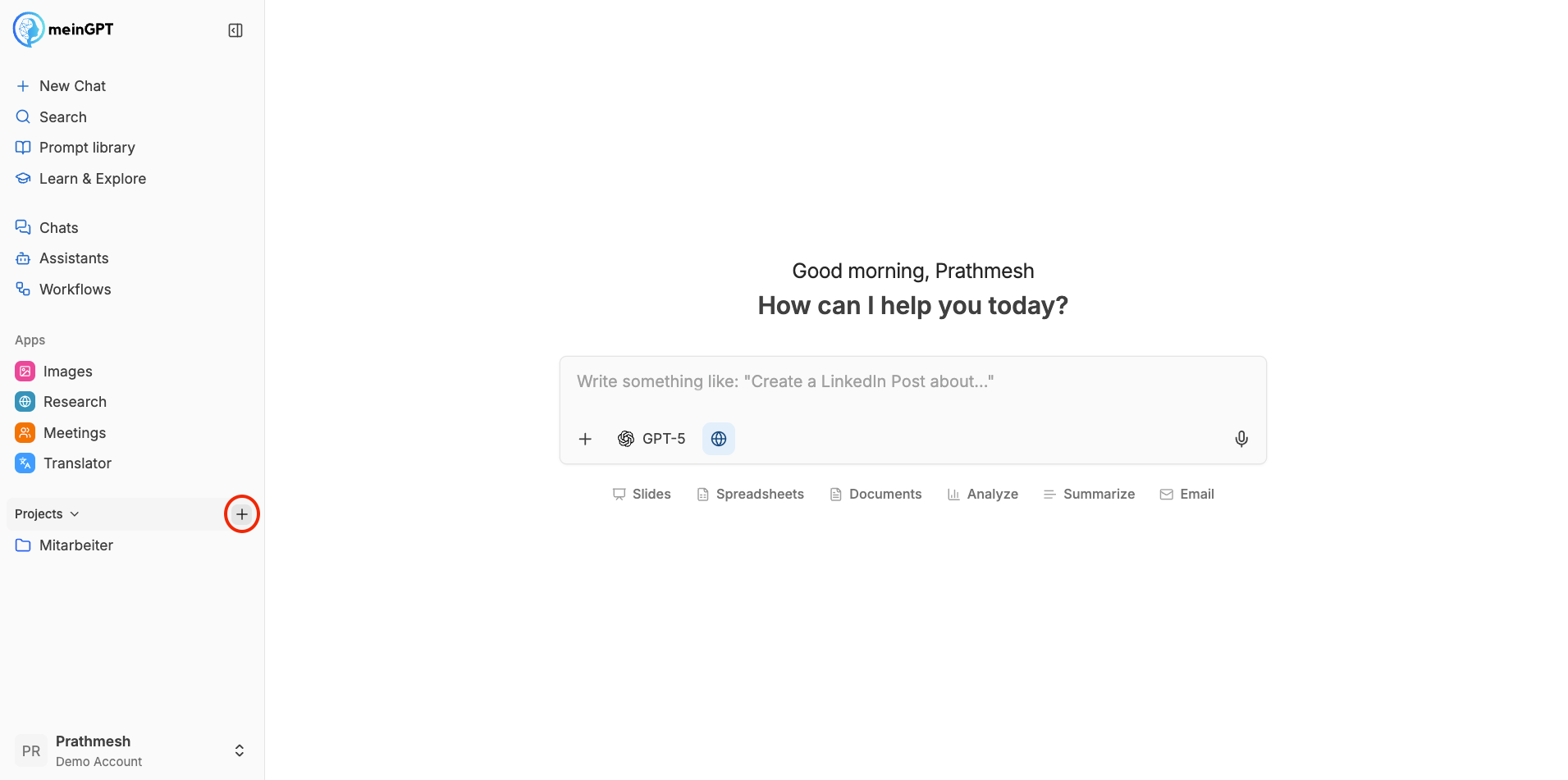
Click the Plus (+) icon in the sidebar. Give your project a clear name and select a recognizable icon to make it easy to find.
Project Overview
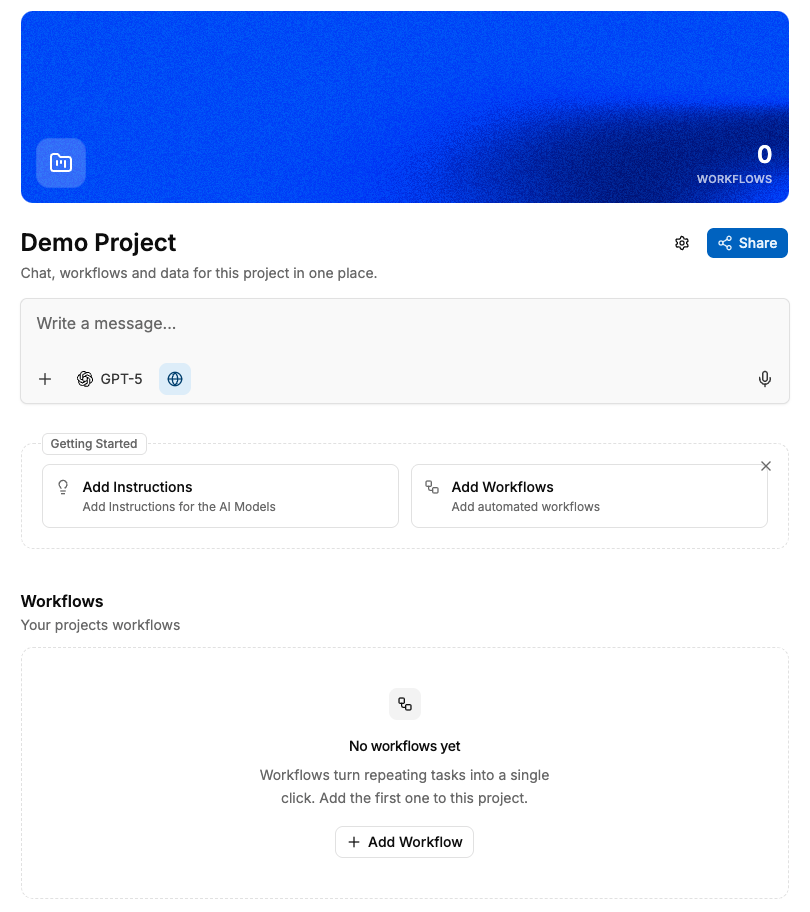
Once created, you will land on the project home screen. This serves as the central hub for all configurations and activities within this project.
Set Custom Instructions
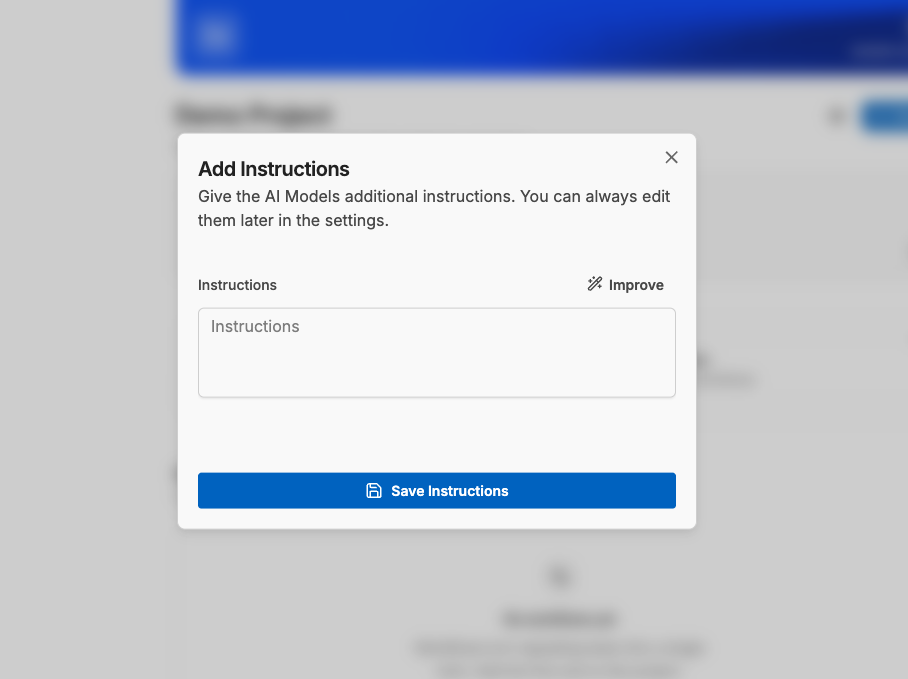
Define how the AI should behave within this project. These "System Instructions" provide context and rules for every chat initiated here.
Note
Tip: Not sure how to write the perfect instruction? Draft a rough idea, and use the Improve feature to polish it automatically.
Collaborate and Share
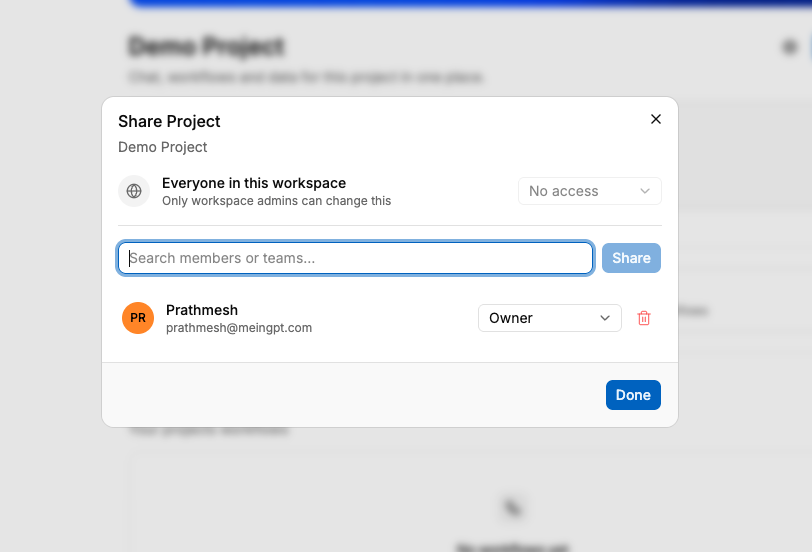
Share your project with specific colleagues or entire teams. When you share a project, members gain access to the Tools (Instructions and Workflows), but not your Data.
Per member you set a role. The role controls what the person can do in the project:
| Role | Permissions |
|---|---|
| Owner | Full access: member management, edit instructions and workflows, delete the project |
| Editor | Create or edit instructions and workflows |
| Member | Run workflows and chat in the project |
Note
Privacy Note: Shared members can use the project's instructions and workflows, but they cannot see your personal chat history. Every user maintains their own private chat list within the shared project.
Start Chatting
You are all set! Start a new chat by typing a prompt or running a specific workflow.
Note
Need to make changes later? Access the Project Settings at any time: click More actions (⋯) in the project header, then Settings.
Note
Workflows are always part of a project — you create them inside a project and share them through its members. There are no workflows outside of a project. Learn more about building workflows.
Note
Chats within the same project do not automatically share knowledge with each other — each chat stays independent. What chats in a project have in common is the project's system instructions, not the content of other chats. A data pool or connector can't be linked to the project directly – instead, attach it to an assistant that you use within the project's chats.
Delete a project
In the Danger Zone of the project settings you'll find the Delete Project button – it's only visible to the project Owner. A confirmation dialog asks you to confirm; you don't have to type the project name.
Attention
Deleting archives the project – it does not delete it immediately and irreversibly. The project's chats are disconnected from it and remain as standalone chats, they are not deleted. The project's workflows are archived, not permanently removed. There is currently no way in the interface to restore the archived project itself. Let members know if they depend on the project.