Create and Run Workflows
Create and use workflows for yourself and your colleagues
Tip
Workflows on the MeinGPT platform let you automate recurring tasks – such as creating reports, analyzing data, or summarizing information – as clear, structured processes. A workflow is a sequence of predefined steps executed by the AI; each step can access a different model and different inputs, so you get the optimal use of each AI model's strengths. This flexibility lets you precisely adapt workflows to your team's or company's requirements and save time and resources.
The Workflows page
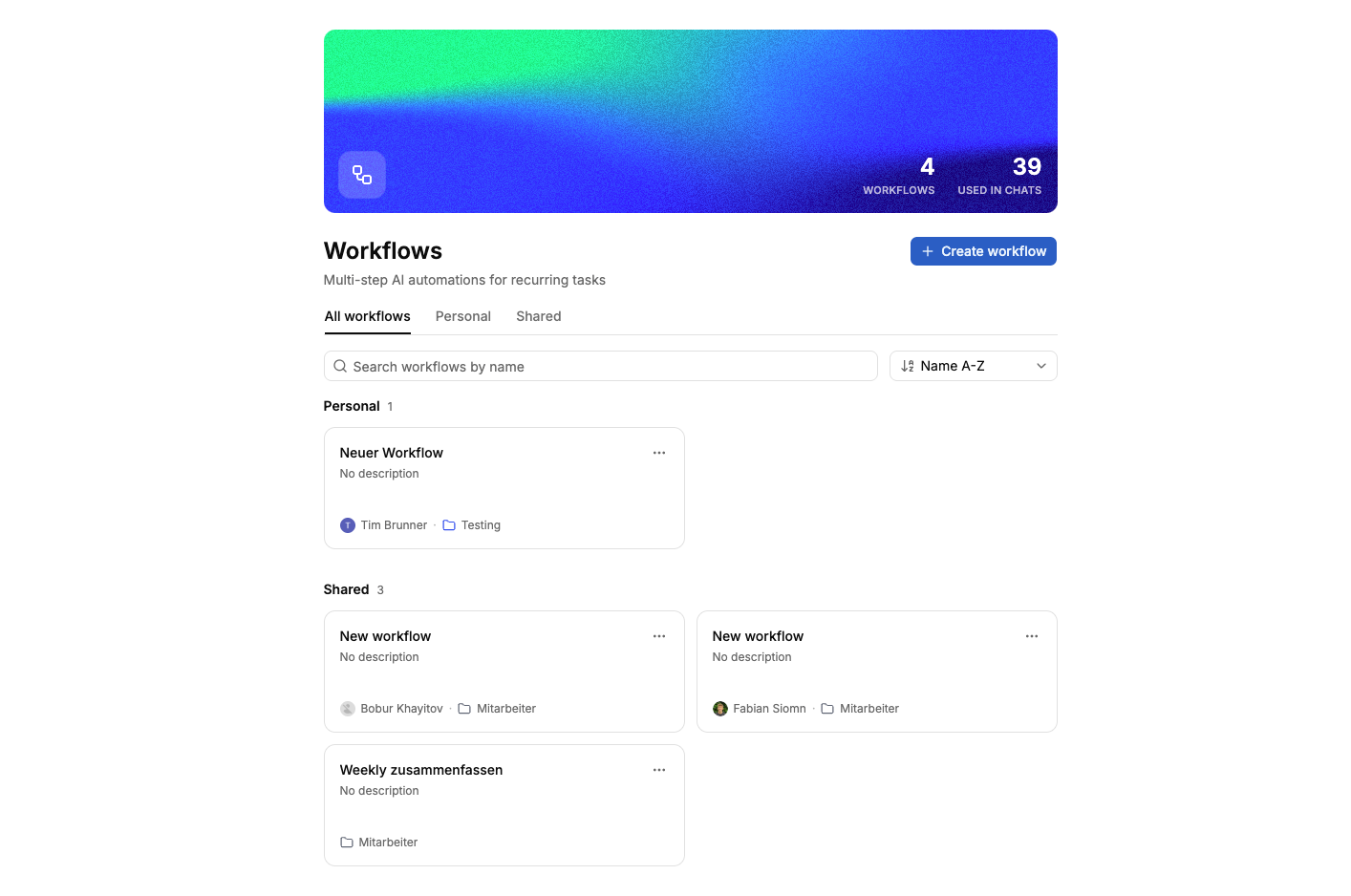
Go to Workflows in the sidebar to see every workflow you have access to. From here you can:
- Search workflows by name, description, or project.
- Sort alphabetically (A-Z or Z-A).
- Switch between All workflows, Personal (created by you), Shared (created by someone else), and Examples (ready-made workflows to try).
- Find workflows you've pinned in a dedicated Pinned section at the top.
Creating a workflow
Click Create workflow
On the Workflows page, click Create workflow. If you have access to more than one project, pick which one the workflow should belong to — every workflow lives inside exactly one project.
Describe it for the AI, or start from scratch
Describe what the workflow should do in a sentence or two and click Create with Buddy — Buddy drafts the steps, variables, and output format for you, ready to refine afterwards.
Prefer to build it yourself? Click Create manually instead to open an empty workflow in the editor.
Either way, you land in the workflow editor to fine-tune the result.
Setting up the workflow
Name and describe it
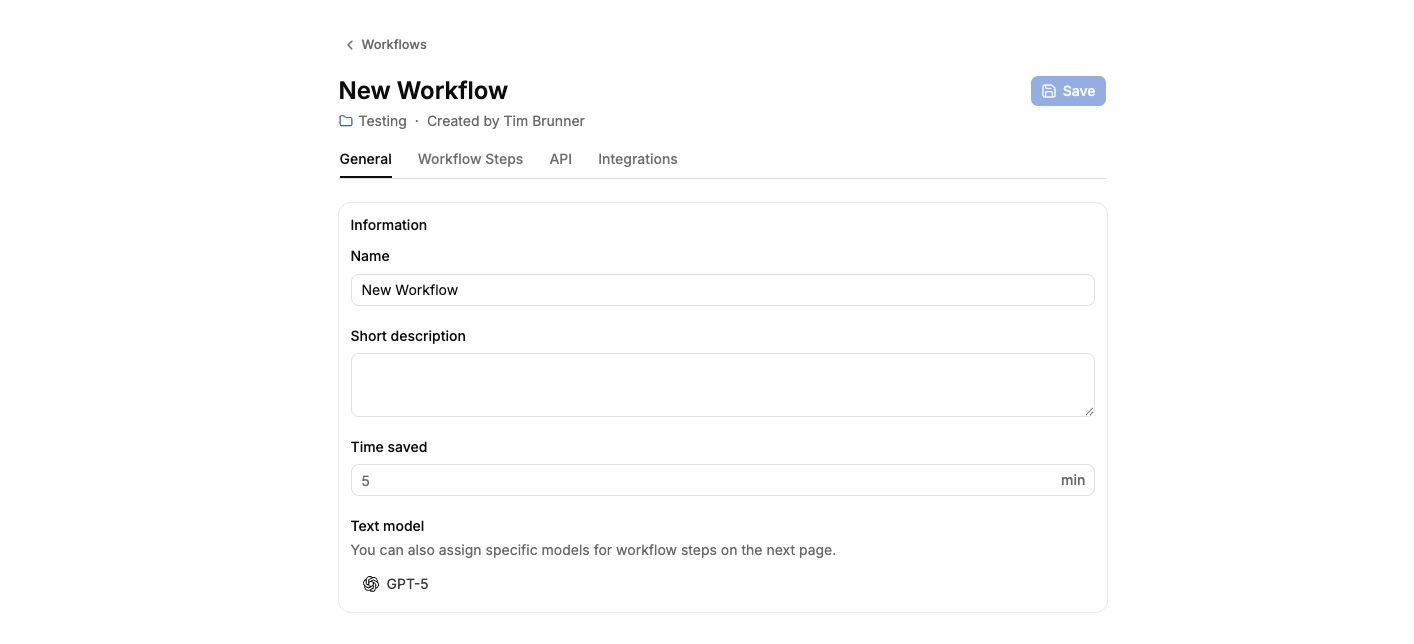
Give the workflow a clear name and a short description — this helps you and your colleagues recognize it later. Optionally, note how many minutes it typically saves per run; this is just your own estimate, purely informational.
Pick a default model
Choose the text model used for the workflow's steps by default.
Note
You can override the model for individual steps later — see below.
Switch to the Steps tab
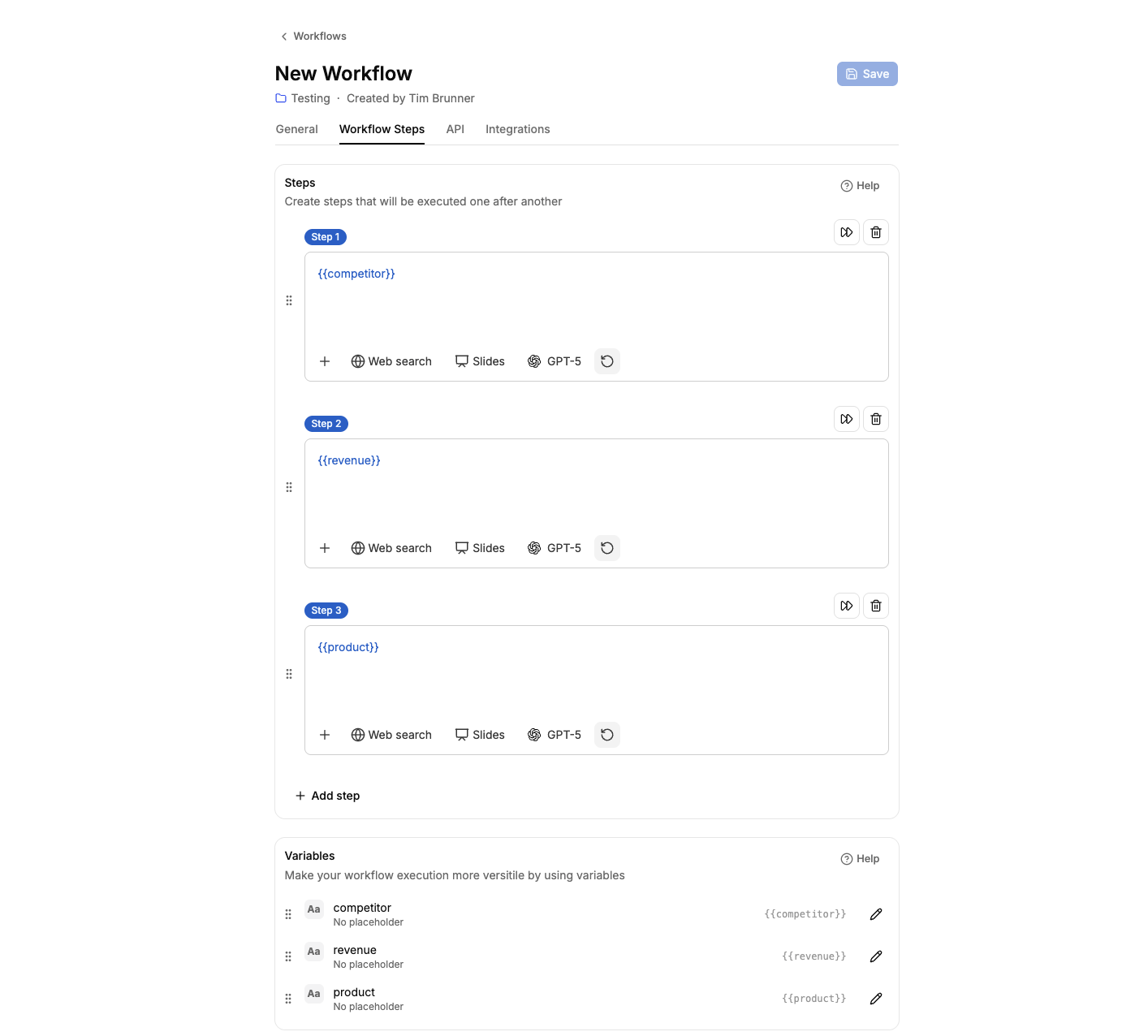
This is where you write the actual prompt(s), define variables, attach documents, and set the output format.
Write the step prompt(s)
A workflow consists of one or more steps executed in sequence. Each step is a prompt the AI processes to complete part of the task — later steps can build on earlier steps' output. Add more steps for more complex, multi-part tasks.
Define variables
Variables let you adapt the workflow to each run without changing the underlying prompt. They're written as {{Variable}} and can be used in any step.
For brief input like a name, title, or keyword.
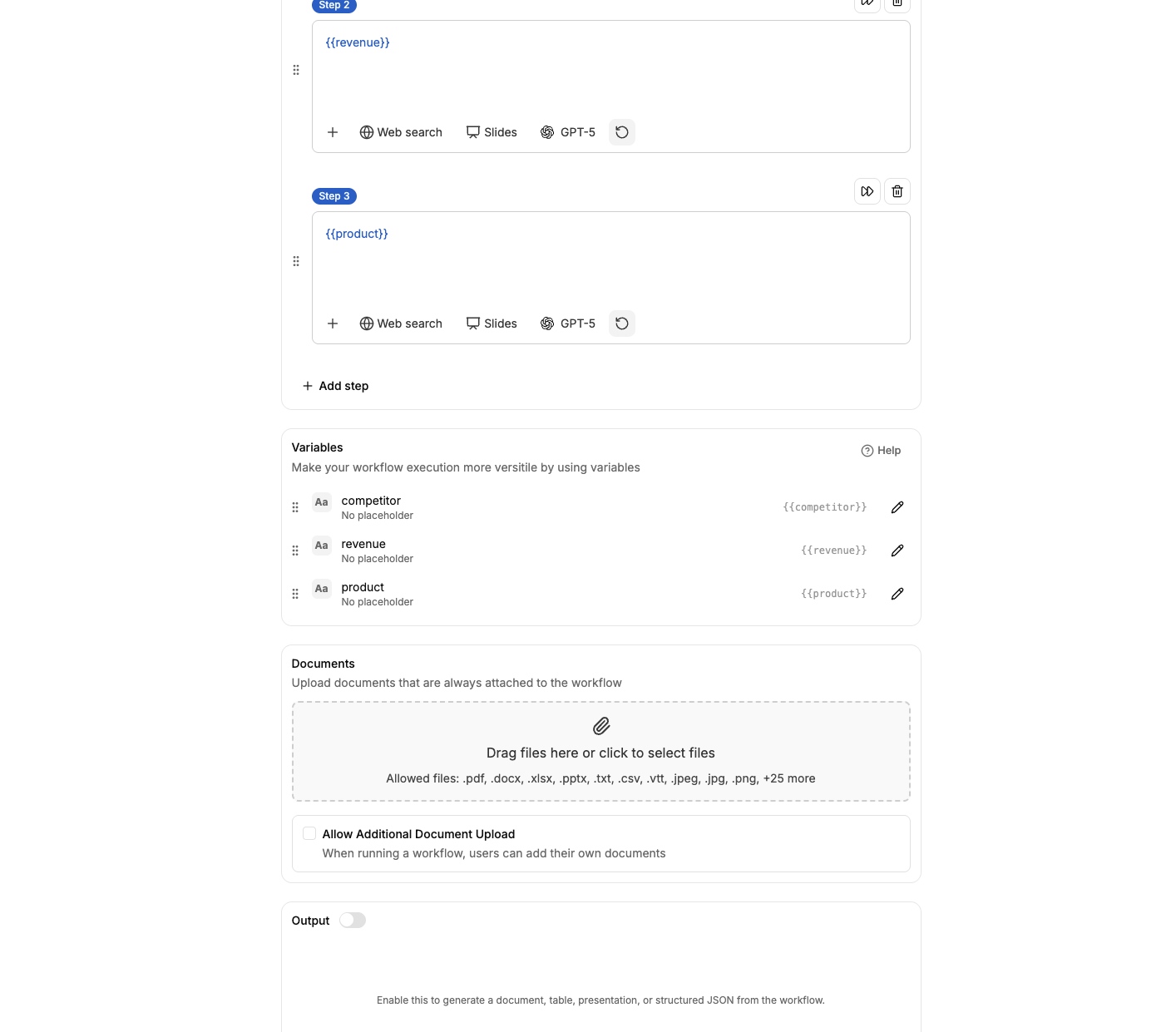
Attach documents
Upload documents that should always be attached when the workflow runs — for example, a sample document that shows the AI the tone or structure you want.
Separately, you can allow additional document upload, so whoever runs the workflow can attach their own file for that specific run.
Plain-text files ending in .bim, .md, .json, .xml, .yaml, and .yml can be uploaded directly without renaming them to .txt. Their content is read as text, not through OCR — including runs through the workflow API.
Note
Encrypted or rights-managed PDFs aren't read. If an uploaded PDF is password-protected or carries a rights-management (DRM) profile, MeinGPT can't read its content - the model then receives no text, or only partial text. Remove the password protection, or export the document without the DRM restriction, before uploading it here or when running the workflow.
Adjust models and web search per step
Each step can use a different model than the workflow's default — useful when one step needs more creativity and another needs precision. You can also toggle web search independently per step, for example only on a research step, while later steps just work off its output.
Set the output format
Turn on document output to have a formatted file generated automatically once the workflow finishes:
- Document (Word, PDF, Text)
- Table (Excel, CSV)
- Presentation (PowerPoint)
- Structured JSON (machine-readable output, ideal for downstream processing via the Workflow API, Make, or n8n)
The generated document remains in the chat and can be downloaded at a later time.
Note
You have to pick a branding template yourself. If an admin has configured a document template (logo, header, footer) under Settings → Branding, it isn't applied automatically. Select it here in the Template field from the list — as long as it's set to No template, the output comes out unformatted, without branding.
Save
Click Save in the page header, or press Cmd/Ctrl+S from anywhere in the editor.
Attention
Every change must be saved. If you navigate away without saving, your changes are lost.
Where the Workflow Wizard often trips
Output without a schema
Symptom: Looks fine on the first test; a colleague gets a different format a week later and complains.
Cause: The prompt says what to produce but not in which shape. Models vary across runs in length, ordering, bullet style.
Fix: Spell out the output schema in the prompt as a list of sections or a sample table. If applicable, enable document output — .docx/.xlsx enforces a fixed structure.
Too many steps in a row
Symptom: Steps 1-3 are usable; from step 5 onward the topic drifts or variables from step 2 are ignored in step 6.
Cause: Each step receives the output of the previous steps as context. Past 6+ steps the context grows long and the model loses the original task.
Fix: Keep workflows to 3-4 steps max. If you need more: split into two workflows — the second takes the first's result as a file input.
Wrong granularity — too specific or too generic
Symptom A: The workflow works only for one customer / one product — the second use case requires rebuilding it.
Symptom B: The workflow is so generic that you end up retyping half the prompt on every run anyway.
Cause: During design, the axis of variation was never decided. Should the workflow vary across roles? Across departments? Across tones?
Fix: Before building, write down: "N people will run this workflow. What changes per run?" — that becomes the variable list. Everything else stays hard-coded in the prompt.
File upload without a format convention
Symptom: The requirement note is sometimes a PDF, sometimes an email, sometimes a whiteboard photo — results swing wildly.
Cause: The prompt implicitly expects a specific input format but never says so.
Fix: State explicitly in the prompt what the uploaded file contains and how it looks — e.g. "The uploaded document contains bullet points on the requirements, half a page to one page, English". If the format is unclear, disable file upload and use a text-block variable instead.
Tip
The trick — manual first, model second. Workflows don't replace an unclear process; they scale a clear one. Run the process manually in chat three times — with three different inputs — before saving it as a workflow. You'll notice which variables actually vary, where the prompt is too vague, and whether the model can deliver what you need at all. Jumping straight into workflow creation usually builds something that misses the real flow, and you only find out when colleagues start using it.
Running, editing, and organizing workflows
Running a workflow
Open a workflow
On the Workflows page, click the workflow you want to run.
Fill in variables
If the workflow contains variables, input fields for the variables will be displayed. Fill in the corresponding values to adapt the workflow to current requirements.
Execute
Click Execute. The workflow runs its steps automatically — once it's started, the AI takes care of the rest.
Editing a workflow
Open the ⋯ menu on a workflow's card (on the Workflows page, or in the sidebar if it's pinned) and choose Edit — this is only available if you have edit rights on the workflow's project. Colleagues without edit rights can still run the workflow, just not change it.
Organizing workflows
From the same ⋯ menu, you can:
- Pin to sidebar (or Unpin from sidebar) — pinned workflows get a shortcut in the sidebar and appear in the Pinned section on the Workflows page.
- Move or duplicate — move the workflow into a different project, or create a copy of it (including into the same project).
- Delete — permanently removes the workflow (requires edit rights).
Frequent questions
Can I version a workflow or roll back to an earlier version?
There is no built-in version history. For larger changes, duplicate the workflow (via the ⋯ menu → Move or duplicate) and edit the copy — that way the running version stays untouched for colleagues.
Who can edit the workflow?
Workflows live inside a project. Anyone with edit rights on the project can change the workflow. Plain project members can run it but not modify it.
How do I share a workflow with colleagues?
Workflows are shared via the project — add the colleague to the project and the workflow shows up for them under Shared. There is no separate workflow export. If a workflow is useful across several teams, place it in a shared project.
Do workflows work with the on-prem Outpost?
Yes. Pinned reference documents and uploaded files are processed via the Outpost, just like in regular chats. You can pick the model per step — for sensitive data, choose a self-hosted model consistently.