Prompt Library
Save proven prompts, organize them in folders, keep them flexible with variables, and share them with teams — best practices instead of retyping.
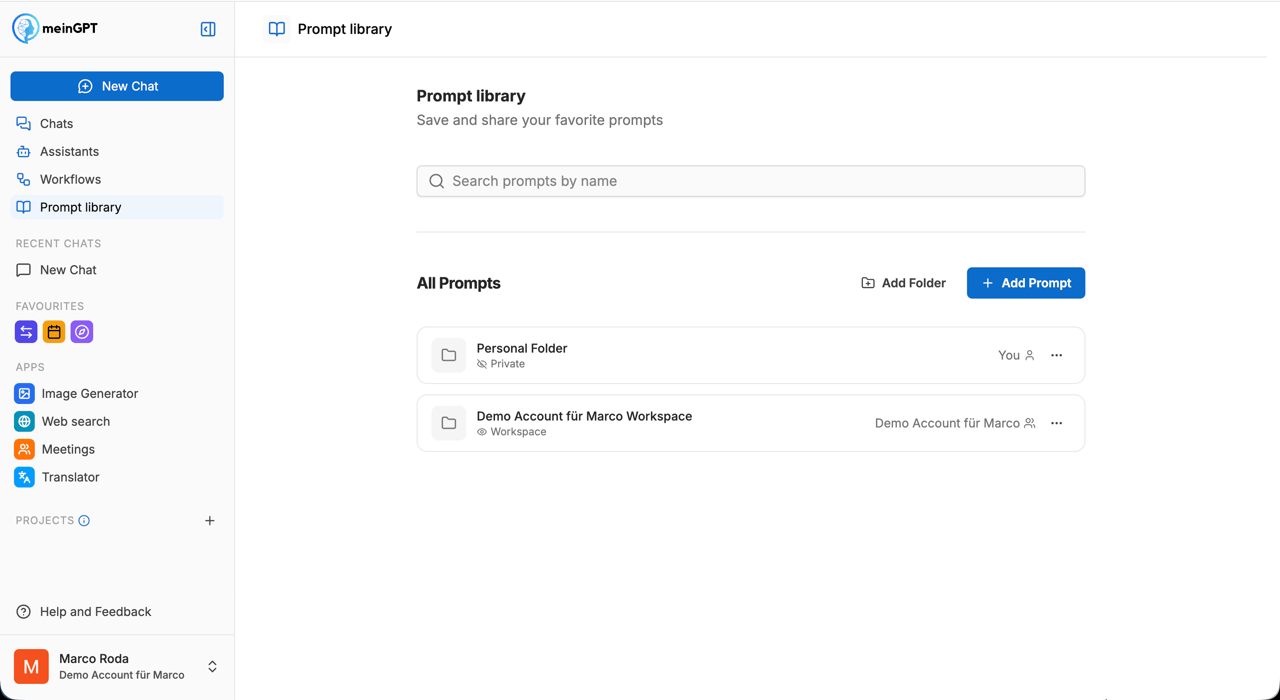
The Prompt Library stores prompts you or your team use repeatedly and organizes them in folders. Instead of retyping the same prompt every day, you click it, optionally tweak it, and send it. With variables, you can reuse the same template across different inputs without touching the text each time.
When a saved prompt makes sense
Save a prompt when it has these traits:
- You type it several times a week in similar form
- It's multiple lines long or contains wording that's hard to reproduce from memory
- It produces reliably good results you don't want to rebuild from scratch each time
- Colleagues should be able to use it too (best-practice sharing)
For one-off, quick questions, saving rarely pays off. For complex, multi-step processes with a fixed flow, reach for a Workflow instead. The comparison table below helps you pick the right tool.
Core capabilities
Save and organize prompts
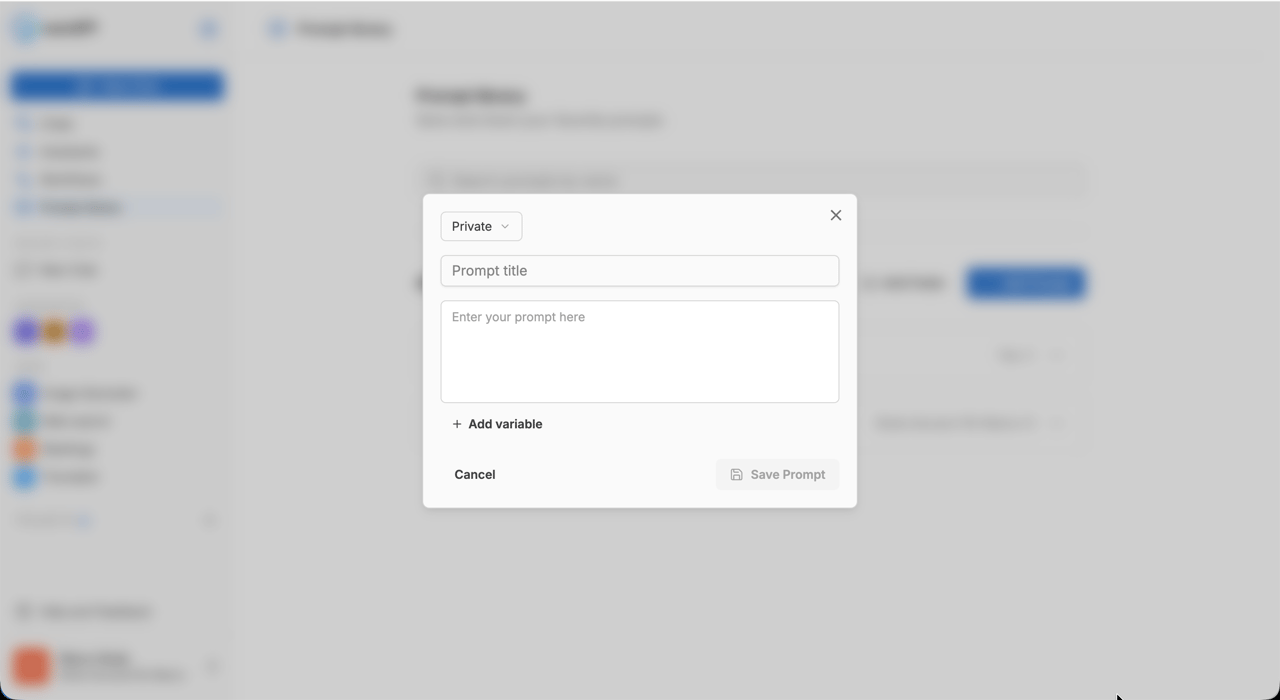
Use Add prompt to create a new entry. Give it a title that captures the task at a glance and paste the prompt text into the content field. When you save, you also pick the folder the prompt goes into (see below) — that's what determines its visibility. Use Add folder to structure your collection by department, use case, or project.
Every user automatically has two default folders: Personal Folder (visible only to you) and your organization's Workspace folder (visible to everyone in the organization). New prompts default to the most-recently-used or oldest folder unless you pick a different one when saving.
Variables for flexible prompts
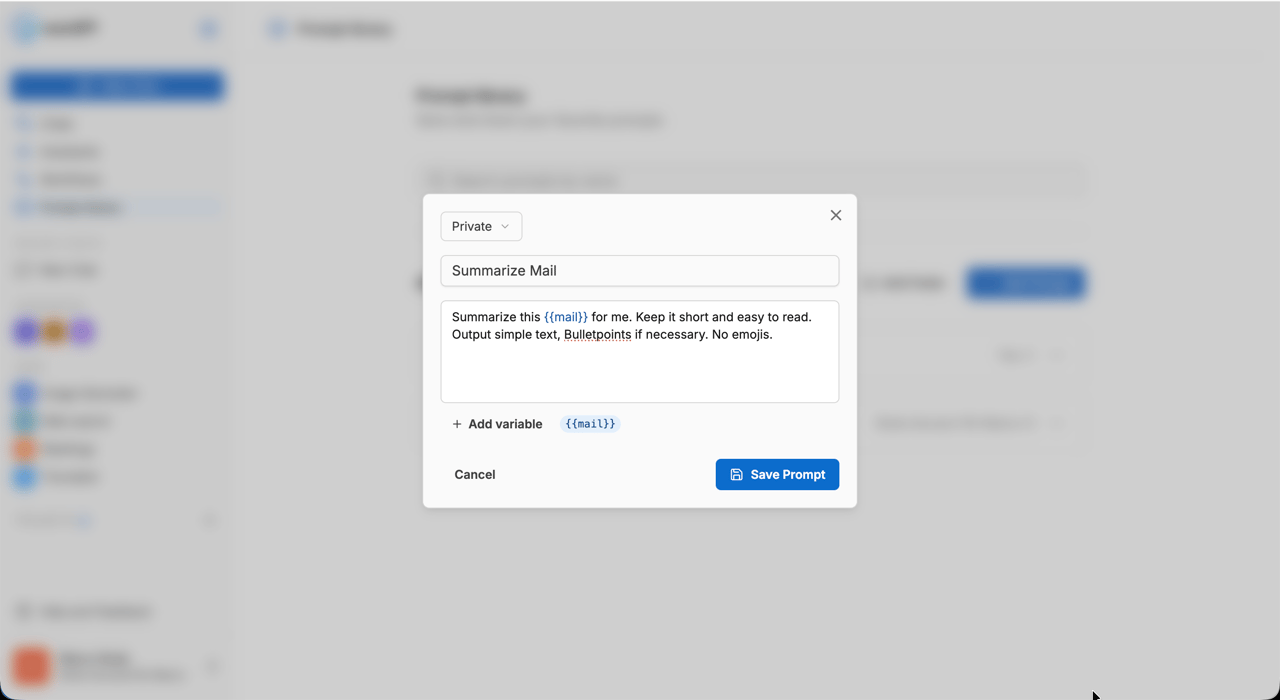
Define placeholders directly inside the prompt text, e.g. {{Customer name}} or {{Quarter}}. When you use the prompt later, the library asks for these values and substitutes them automatically. Handy when the structure stays the same but individual details differ per run.
Visibility and sharing
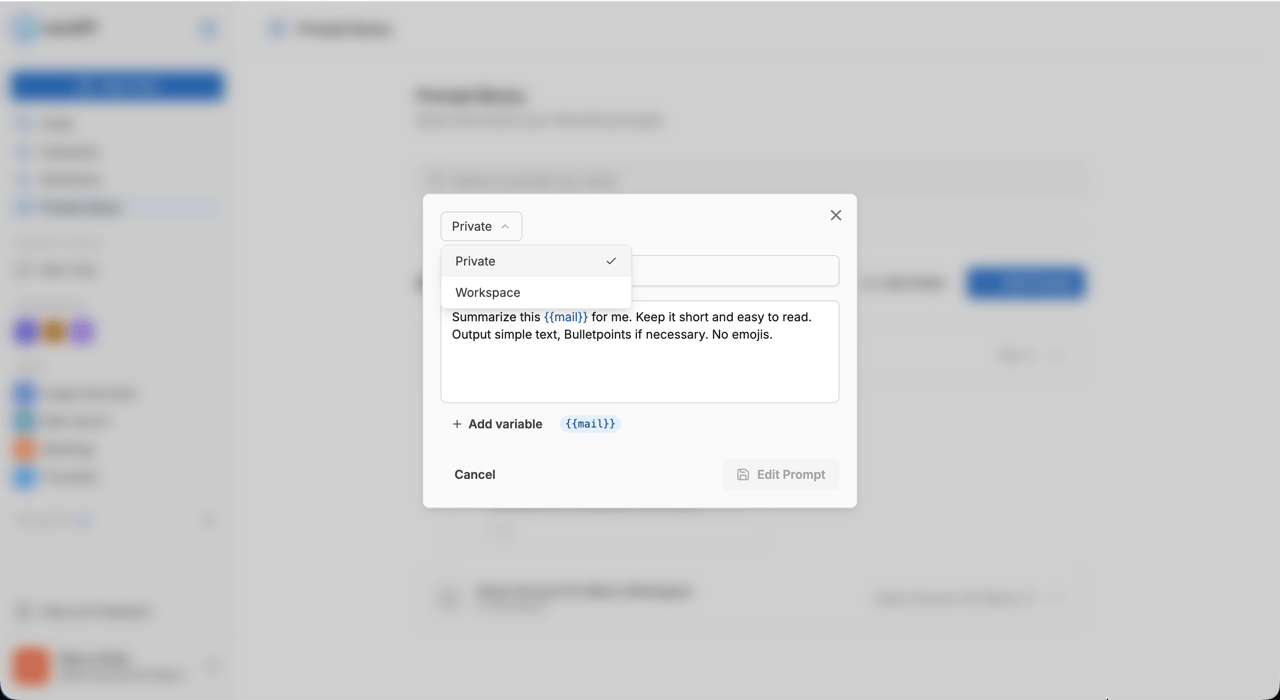
A prompt has no visibility field of its own — its visibility comes entirely from the folder it lives in. Every folder has one of three visibilities:
| Visibility | Who sees the prompts in the folder |
|---|---|
| Private | Only you |
| Workspace | All members of your workspace |
| Department | All members of the assigned department(s) |
MeinGPT automatically creates the two default folders Personal Folder (private) and your organization's Workspace folder (workspace-wide) for you. In the folder dropdown when saving a prompt, these two default folders show up labeled Private and Workspace — what looks like a visibility choice there is actually a choice of destination folder; the prompt's visibility follows automatically from it.
You create your own folders via Add folder. There, only private (only you) or shared with one or more departments is available — workspace-wide visibility can't be set for a new folder; it exists only on the automatically created default workspace folder.
This is how you grow an organization-wide library step by step, with best practices available centrally so newcomers benefit from proven prompts immediately.
Folders can also be deleted (except the two default folders Personal Folder and your organization's Workspace folder — those cannot be renamed or deleted). Deleting a folder deletes the prompts inside it too, rather than moving them to another folder.
Prompt Library vs. Workflows
Both tools save reusable templates, but they solve different problems:
| Criterion | Prompt Library | Workflow |
|---|---|---|
| What it is | A saved prompt template you use in chat | A multi-step process with defined steps |
| Complexity | Simple, one prompt, one request | Complex, several steps with different models |
| User interaction | Select prompt, optionally fill variables, send in chat | Fill input fields, the rest runs automatically |
| Model choice | You pick the model yourself in chat | Each step can use a different model |
| Output | Normal chat response | Structured outputs: Word, PDF, Excel, PowerPoint, JSON |
| Typical use | Recurring single requests with the same prompt | Multi-step processes with a fixed flow and defined output |
Rule of thumb: If you keep typing the same prompt, it belongs in the Prompt Library. If the flow has several steps and needs a defined output format, a Workflow is the right choice.
Frequent questions
Who can edit a shared prompt?
Only the prompt's creator, or members with sufficient rights in the workspace, can edit. Everyone else can use and copy the prompt but not change it. That protects shared best practices from accidental edits.
Can I save a prompt directly from a chat?
Yes. If a prompt you wrote in the chat works well, you can store it as a library entry without retyping. The "Save as prompt" action appears in the chat context.
What happens to my private prompts when I switch workspaces?
Private prompts are tied to your user account and stay with you across workspaces. Shared prompts belong to the workspace they were created in and stay there.
How many variables can one prompt have?
Effectively unlimited. Keep the count manageable, though — too many input fields hurt usability. Once you go past five or six variables, consider a Workflow with typed input fields instead.