Help and Feedback
Help and Feedback brings the support chat with Mia, your tickets, issues, and feature requests, and the direct link to the roadmap and documentation together in one place.
Ask Mia, the AI assistant, first – she answers most questions right away. If your problem is still unsolved afterwards, you create a ticket from the same chat and reach the human support team.
Where to find it
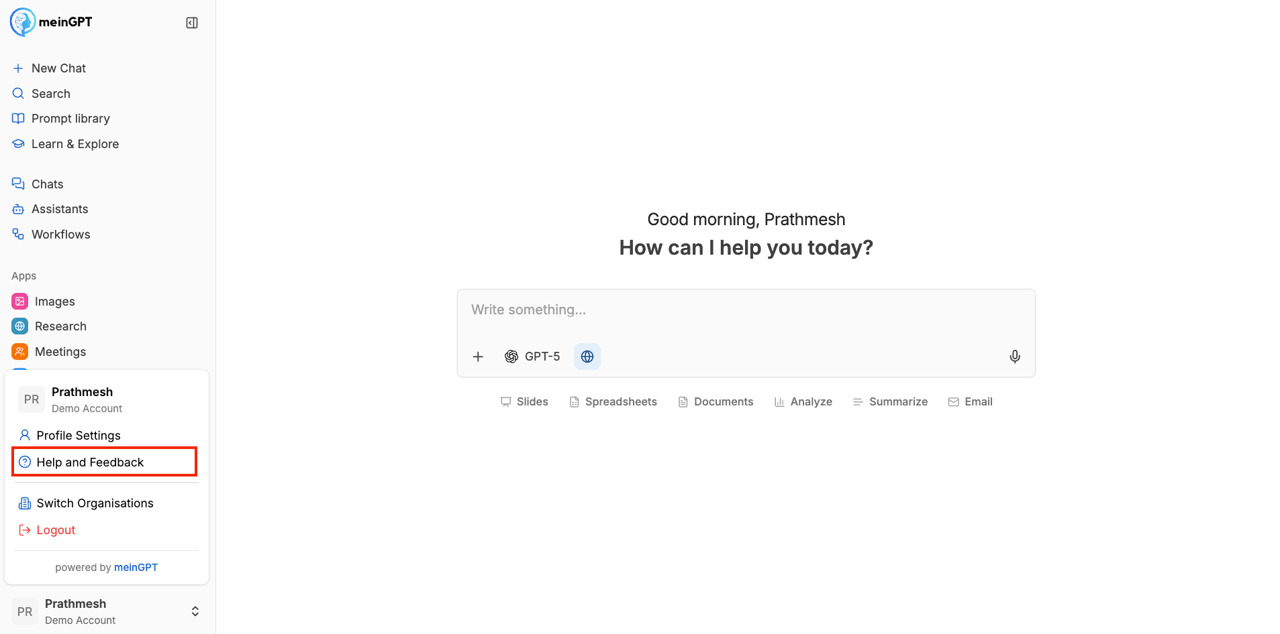
Open the user menu at the bottom left (click your name) and choose Help and Feedback.
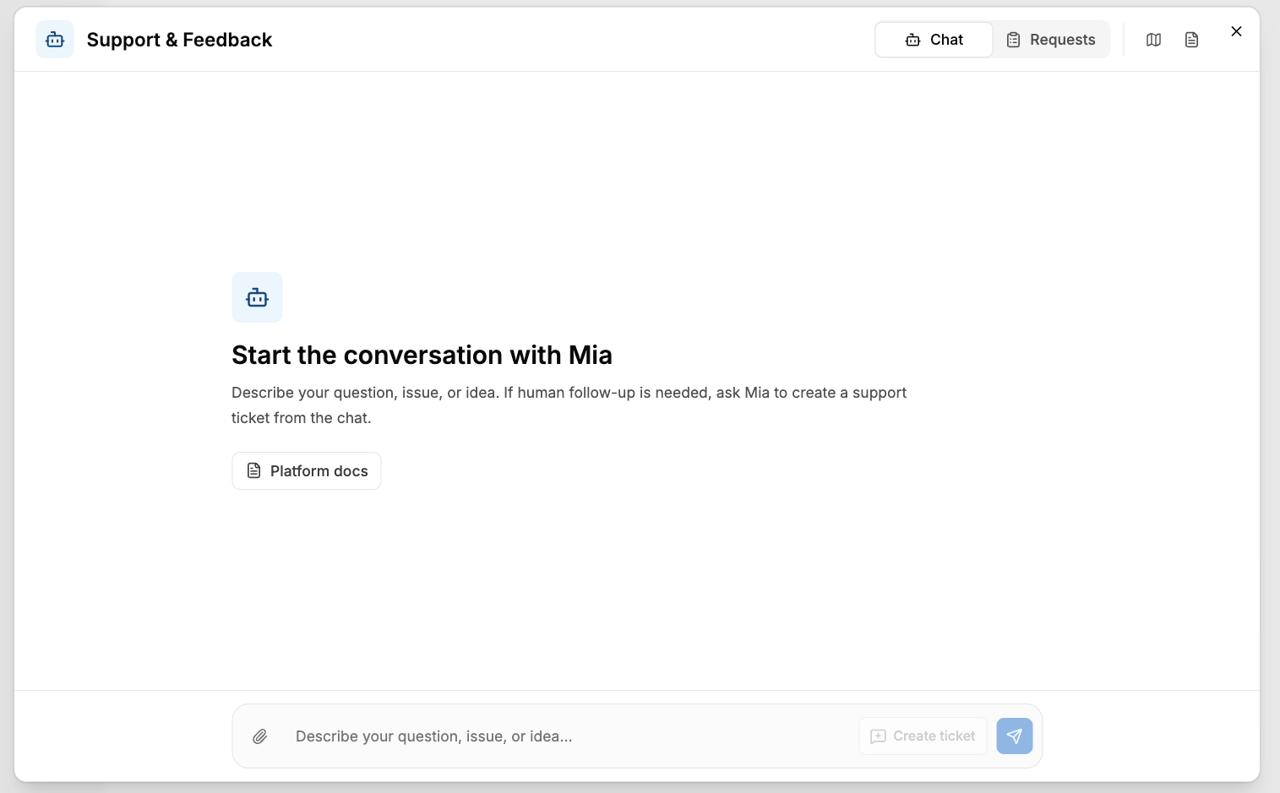
The Support & Feedback window opens with three areas: Chat, Requests, and – for workspace admins and platform support – Organization.
Note
The Help and Feedback entry can be turned off per workspace. If the menu item is missing for you, it is hidden for your workspace – contact your administration or MeinGPT support.
Chat with Mia
Mia is the AI assistant in support. Describe your question, issue, or idea in the input field – Mia replies directly in the chat.
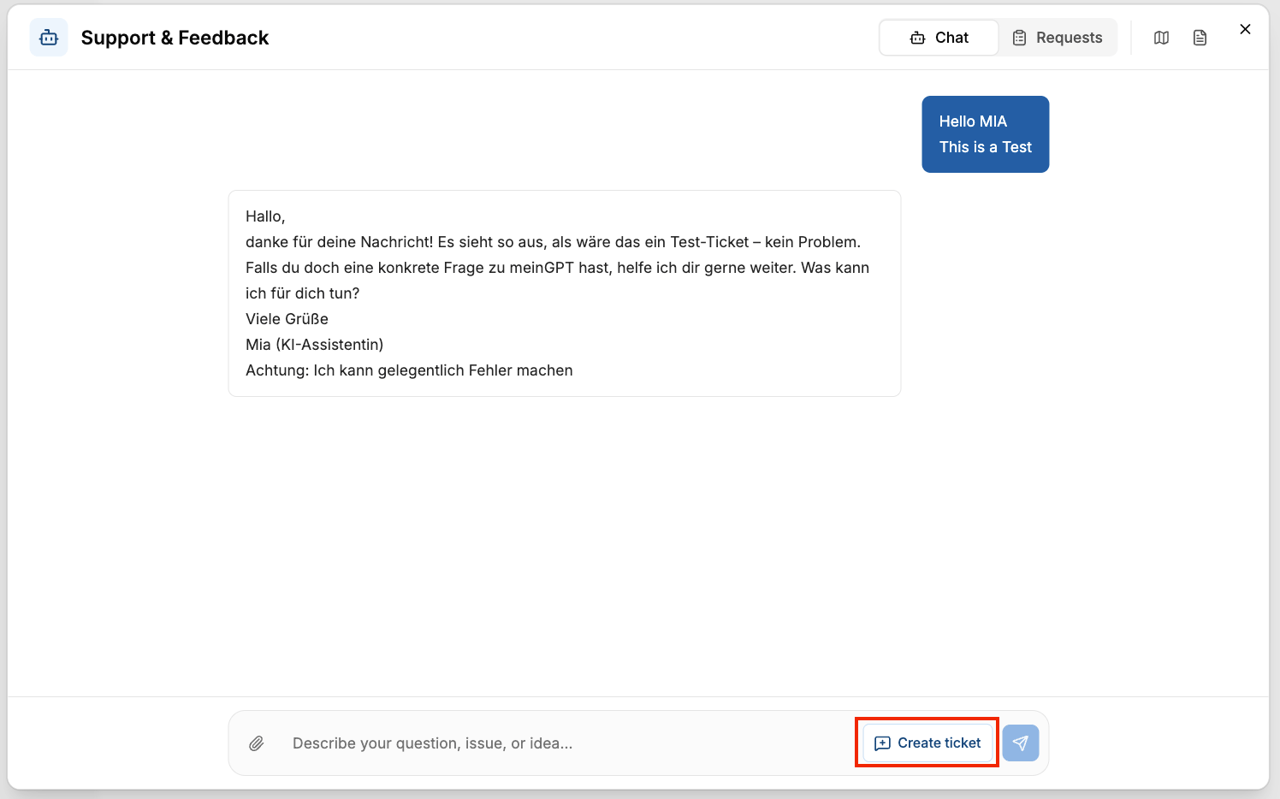
- You can attach files (e.g. a screenshot of the problem), up to 10 files of at most 25 MB each.
- If Mia's answer isn't enough, you can create a ticket for the support team from the chat (see below).
Creating a ticket
There are two ways to create a support ticket from the chat:
Let Mia draft it
Ask Mia to create a ticket from the conversation. Mia produces a ticket draft with a subject and description that you can still adjust before sending. Submit ticket sends it to support.
Save the chat as a ticket directly
Use Create ticket to save the whole conversation as a ticket without editing a draft.
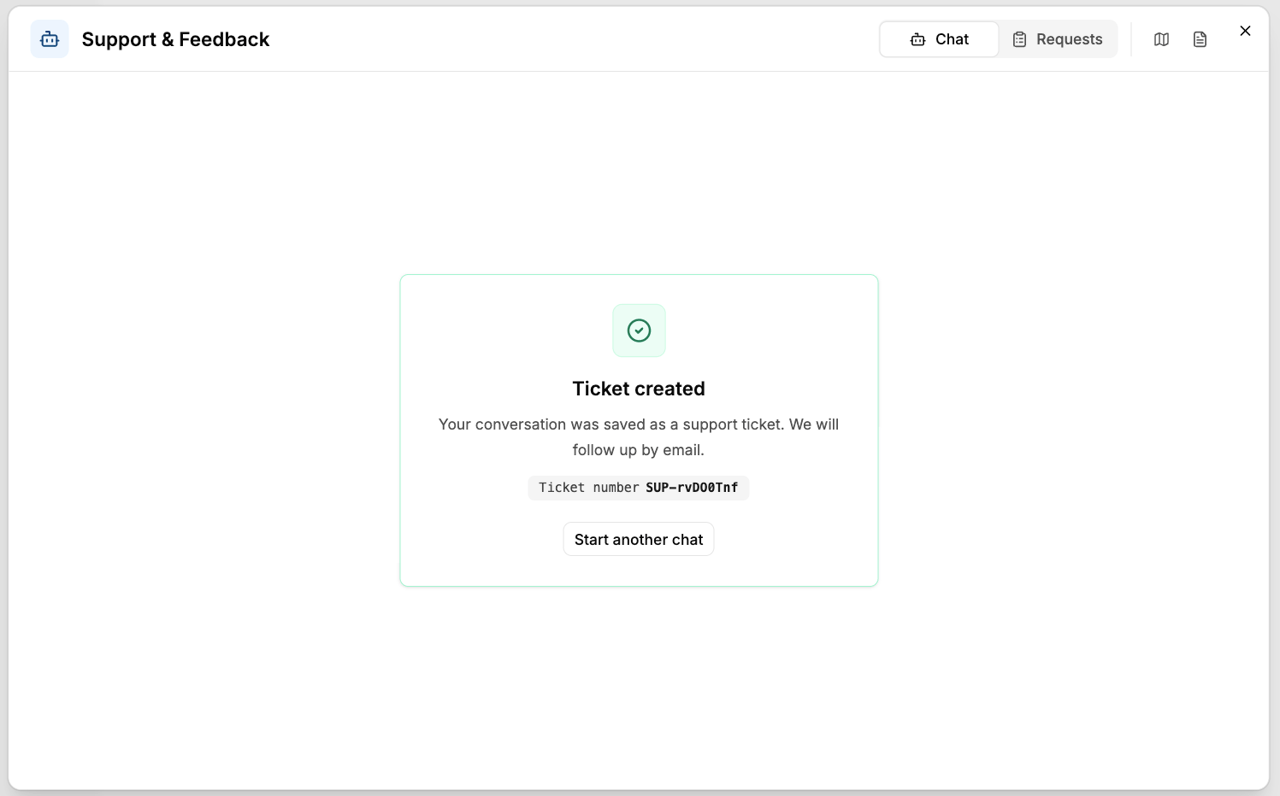
In both cases the chat with Mia is attached to the ticket so the support team sees the history. After creating it, you get a ticket number; the support team follows up by email.
Requests
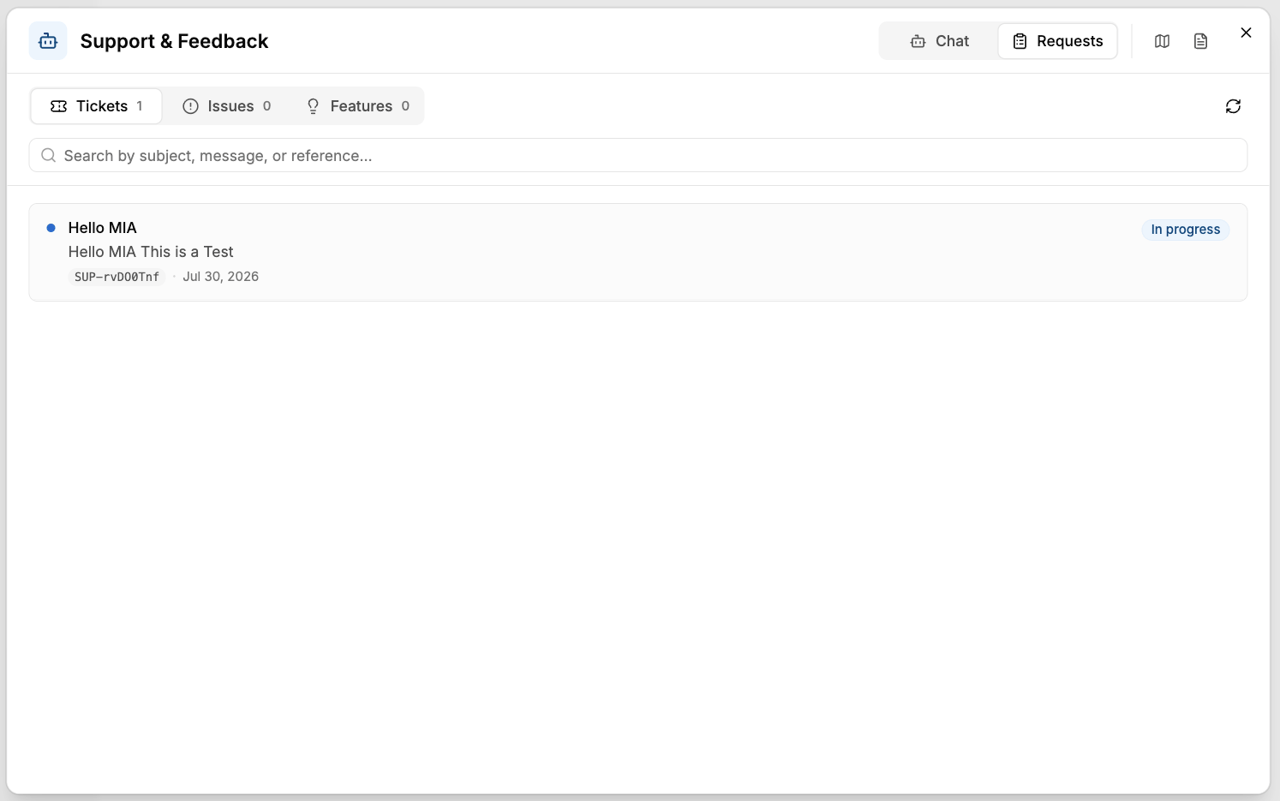
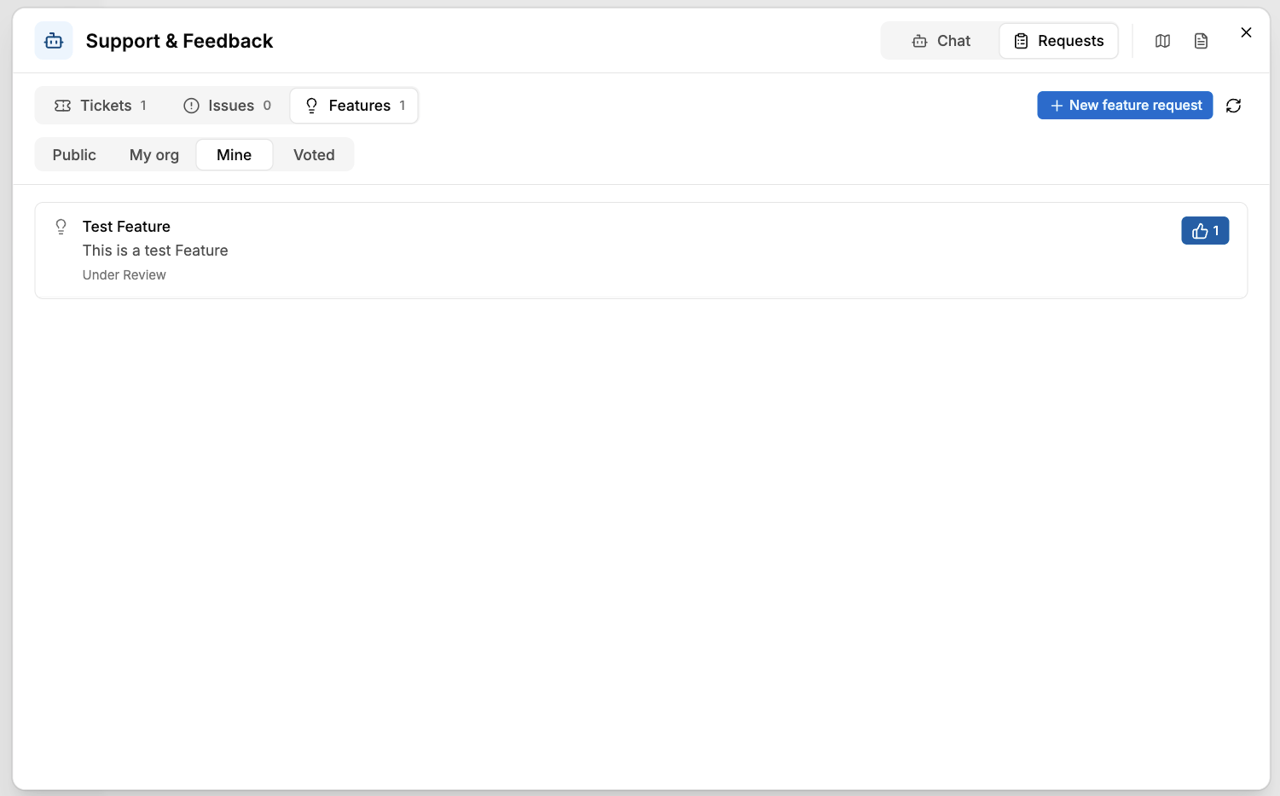
In Requests you manage your tickets, public issues, and feature requests. Use the Public, My org, Mine, and Voted filters to narrow the list; the search finds entries by subject, message, or reference.
Tickets
Your support tickets with their status (In progress, Awaiting your reply, Resolved, Closed). Open a ticket to see the history and reply.
Issues
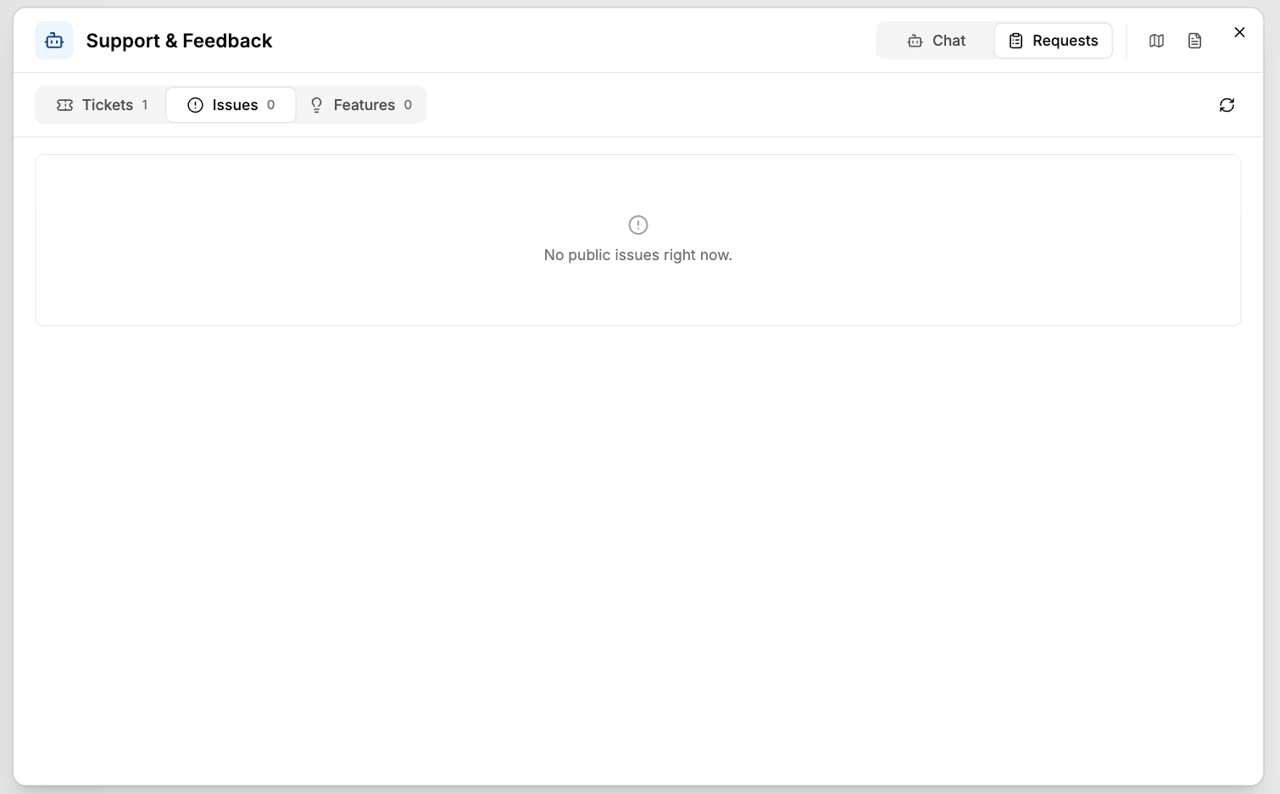
Publicly visible issues. You can subscribe to and comment on them.
Features
Feature requests with their status (Under review, Planned, In progress, Released, Declined). You can vote, subscribe, and submit your own idea via New feature request.
Organization
The Organization area is visible only to workspace admins and platform support. It shows every support ticket from the team with an overview (Total, Open, Awaiting your reply, Resolved). You can search by subject, reference, or person, filter by status, and add context or a comment for the support team on a ticket.
Quick links
At the top right of the window you'll find two shortcuts:
- Roadmap – opens the public roadmap in a new tab.
- Platform docs – opens this documentation in a new tab.