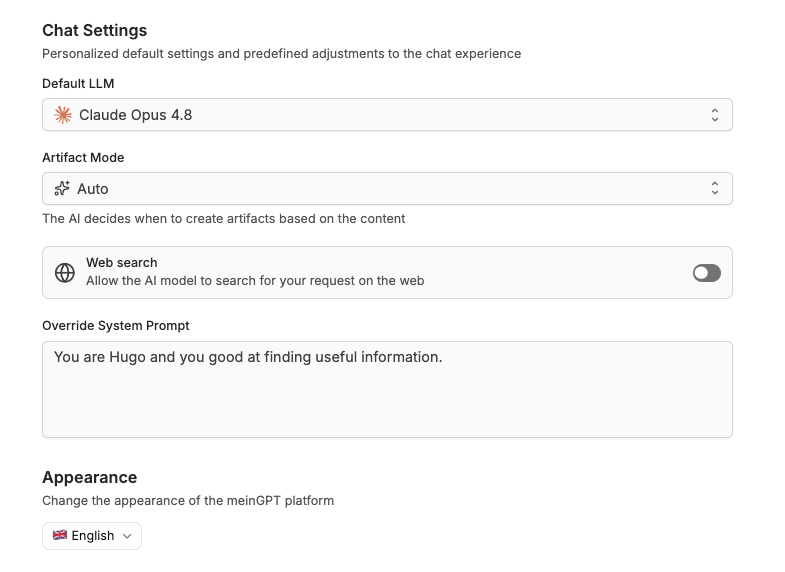
Personal chat defaults: default model, artifact mode, web search, your own system prompt, and the platform language.
Under Settings → Preferences you customize your own account. The settings here apply only to you and define the defaults every new chat starts with – independently of other users in your workspace.
The Chat Settings section defines the default values a new chat begins with.
Default LLM
Determines which AI model is pre-selected in a new chat. Pick a specific model, or Automatic (same as Best model): it selects GPT-5 by default and only switches to Gemini 2.5 Flash for very long conversations – the choice depends on input length, not on task type. For accuracy-critical requests, pick a specific model deliberately, see AI models. Inside the chat you can switch the model at any time.
Artifact Mode
Controls whether the assistant returns longer content as an artifact in its own panel. There are three modes:
Auto – the AI decides, based on the content, when an artifact makes sense.
Active – the assistant always turns longer answers into an artifact.
Off – no artifacts are created.
Web search
Sets whether a new chat may search the web by default. When the switch is on, the AI model may access current web results for your requests. This too can be toggled per chat.
Override System Prompt
Here you store a personal instruction that is applied as an additional system instruction in your chats – for example a role, a tone of voice, or a preferred language the assistant should follow throughout. It acts as your standing base instruction and is applied on top of the workspace context and – if you use an assistant – its instructions.
Note
Your own system prompt applies to all your chats. Keep it general (role, tone, language). For task-specific instructions, a dedicated assistant is the better choice.
The Appearance section sets the platform language. It determines the language the meinGPT interface is displayed in, and is independent of the language you write in within a chat.
Note
The Preferences page also lets you choose which apps appear in the sidebar and manage your notifications.