Memory
How the built-in Memory tool works: personal long-term context that an assistant stores and recalls.
The built-in Memory tool gives an assistant a long-term memory: it remembers information about you across individual chats and recalls it later. That way you don't have to re-explain recurring context – your role, your working style, fixed preferences – in every chat.
Hinweis
Memory is personal per user. Your memories are tied to your account, are not visible to others, and are not automatically shared with your team.
How Memory works
Memory is enabled on the assistant
Memory is a built-in tool and only works when it is switched on in the assistant. You enable it in the Editor under Tools → Basic tools. If the tool is off, the assistant neither stores nor reads any memories.
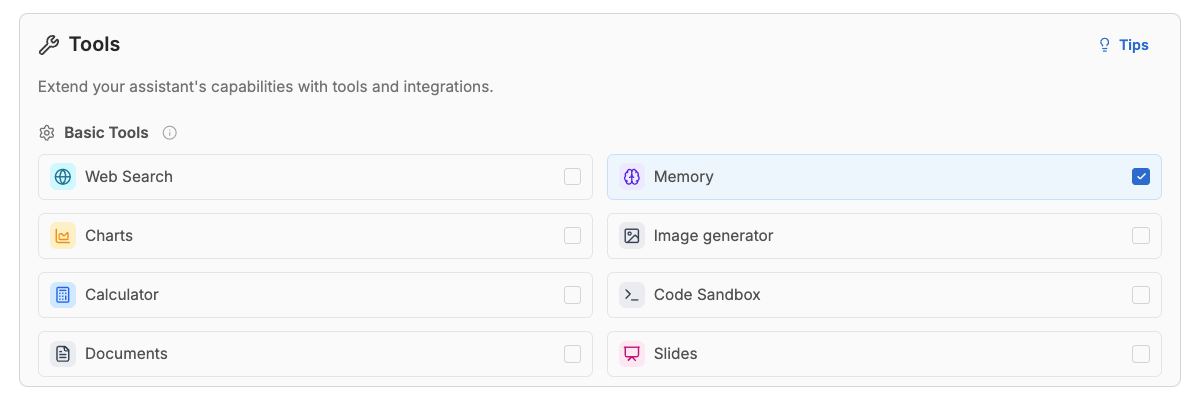
Your memories apply across all your assistants
Memories are tied to your user, not to a single assistant. Every assistant of yours that has Memory enabled draws on the same personal memory store. So what one assistant stores about you can also be used by another assistant that has Memory enabled.
The assistant decides when to use Memory
Memory is not loaded automatically into every chat. Instead, the model decides for itself when to use it:
- It searches your memories before answering a question that might depend on prior context.
- It stores a new memory when a stable preference or long-term context comes up.
- It updates an existing memory when you correct earlier information.
You can see these actions directly in the chat as their own tool steps.
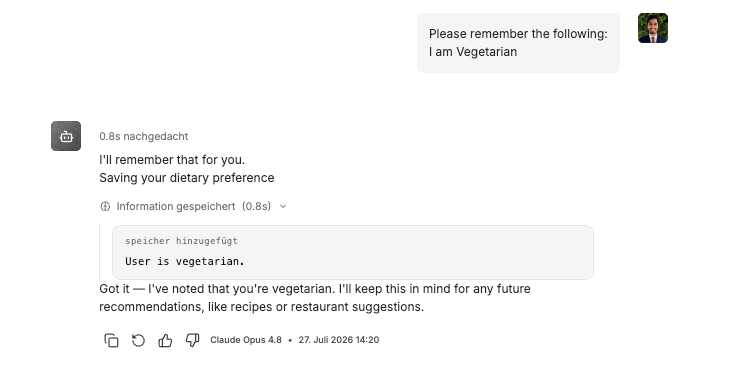
Search understands meaning, not just keywords
Memory search works semantically – it finds relevant memories by their meaning, not only on an exact word match. A question about "my preferred tools" will therefore also find a memory that names a specific tool.
Tool methods
When Memory is enabled, the assistant has access to these methods:
| Method | What it does |
|---|---|
memory_add | Store a new memory |
memory_search | Search memories semantically |
memory_get_all | List all stored memories |
memory_update | Update an existing memory |
Hinweis
The assistant can add, search, list and update memories – but not delete them. Deletion is entirely up to you in Settings (see below).
Managing memories
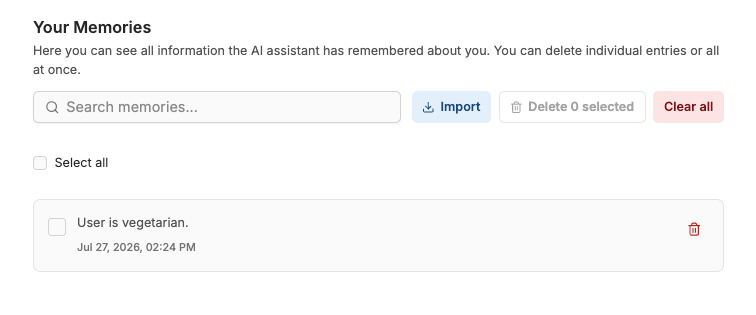
You manage your stored memories centrally on the Memory page in Settings. There you can:
- view and search all stored memories,
- delete individual entries,
- select several entries and delete them together,
- remove the entire store via Clear all,
- import memories from another AI (see below).
Hinweis
The content of a memory is not edited in Settings. To change a memory, delete it here or let the assistant update it in the chat.
Import memories from another AI
If you have already worked with ChatGPT, Gemini, or Claude, you can bring the context they stored about you into meinGPT — without rebuilding it from scratch. On the Memory page in Settings, open Import.
The import has three steps:
- Copy the prompt: meinGPT gives you a ready-made prompt. Copy it and paste it into ChatGPT, Gemini, or Claude.
- Paste the response: bring the other AI's answer back and paste it in. meinGPT extracts the memories and sorts them into categories (Profile, Working style, Active work, Team & contacts, Rules).
- Review and import: go through the suggestions, edit them if needed, and uncheck anything you don't want to keep. Import finishes the process.
Only the memories you selected are stored. Up to 50 memories are imported per run.
Hinweis
📸 Screenshot to follow: Import wizard on the Memory page.
Target file: /images/assistants/memory-settings-import-en.png
Best practices
- Store stable preferences and long-term context – not fleeting one-off details.
- Keep memories short and self-contained so each stays usable on its own.
- Do not store secrets or highly sensitive data (passwords, keys).
- Have existing memories updated on corrections instead of creating duplicates.