Quick Actions
Buttons under a chat response that apply a predefined follow-up prompt with one click — default actions, creating your own and managing them.
Quick Actions are customizable buttons that appear under a chat response and apply a predefined follow-up prompt to it with a single click. Instead of typing "Make this shorter" every time, you click More Concise and the assistant shortens the response.

Default Quick Actions
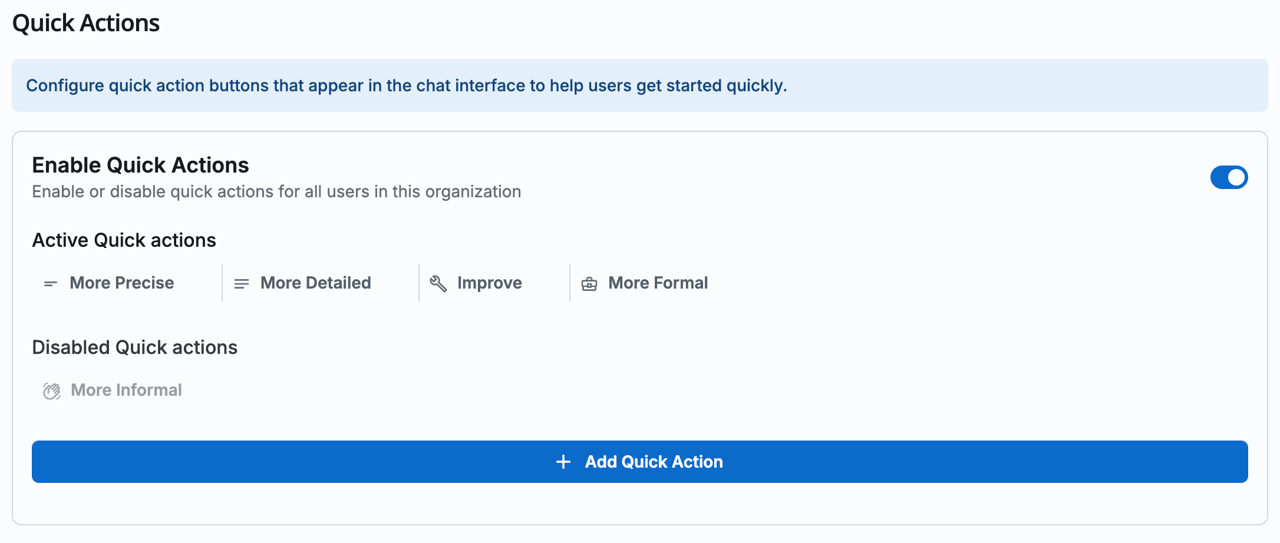
New organizations automatically receive the following Quick Actions:
- More Concise: makes text more precise and to the point
- More Detailed: expands text with additional detail
- Improve: general text improvement
- More Formal: converts text to a more formal tone
- More Casual: converts text to a casual tone
Managing custom Quick Actions (admin)
Workspace admins can create their own Quick Actions for tasks that come up repeatedly in a team. Examples: "Translate to English", "Turn this into an action list", "Draft a reply for an email request".
Go to Chat settings
Go to Settings → Chat and open the Quick Actions section there.
Open the Edit modal
In the Quick Actions section, click Edit — this opens a modal listing all existing actions.
Create a new Quick Action
At the top of the modal, pick an icon, enter the label in the title field (placeholder "Quick-Action title...") and the actual prompt text below it. Newly created actions are enabled automatically.
Save
Click + Create Quick-Action. When editing an already-saved action, the same button reads Save Changes instead.
Edit, enable, delete your Quick Actions
Every saved action in the list has a checkbox to enable or disable it, plus a "···" menu with three entries:
- Edit – loads the action's label, prompt and icon into the fields at the top of the modal; the change is applied via Save Changes.
- Duplicate – immediately creates an enabled copy of the action.
- Delete – asks for confirmation in a dialog before permanently removing the action.
Limits and permissions
- Maximum enabled actions: 8 per organization. You can create more, but only 8 can be active at the same time.
- All workspace members can see and use Quick Actions, only workspace admins can manage them.
Best practices for Quick Actions
- Be specific: a Quick Action with a clear prompt produces more consistent results
- Keep it short: concise prompts are easier to maintain
- Test before activating: run a Quick Action yourself once before the whole team sees it
- Use descriptive labels: the button text must be understandable in one second