Console & operations
Check status, shares, activity, connectivity and support in the Outpost.
The Outpost is operated in the application window on its machine. No command line is needed for day-to-day work.
No window, no console, nothing at all? → Outpost does not start
What does the label on the Outpost card in MeinGPT mean? → Status in MeinGPT
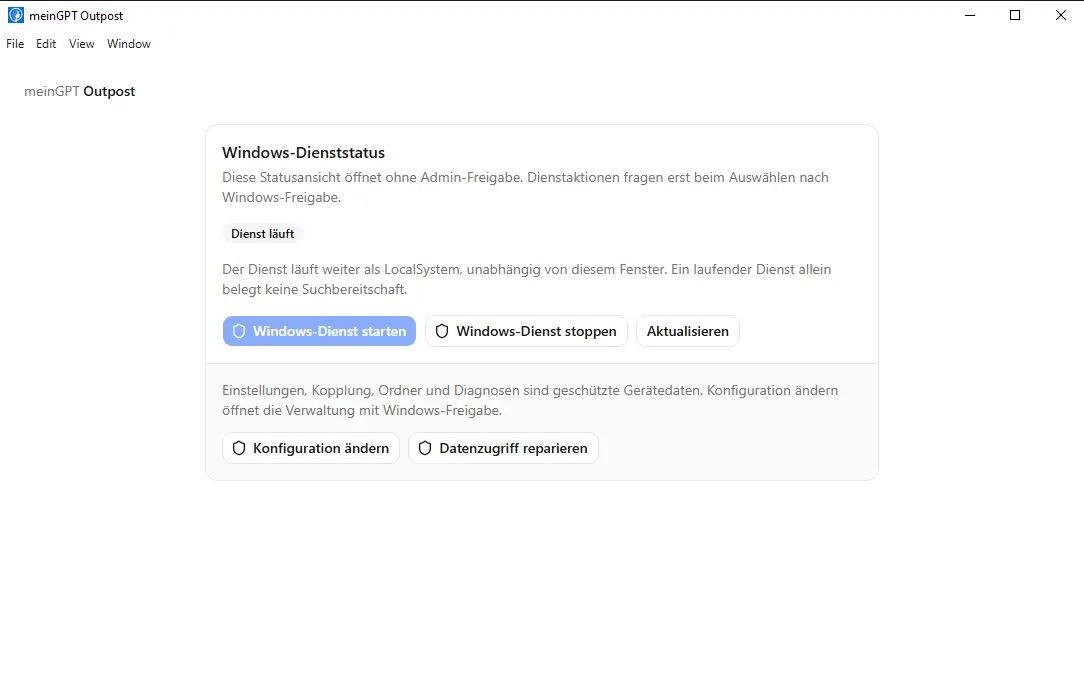
Windows: status without administrator approval
On a standard Windows installation, the console initially opens Windows service status without a UAC prompt. Refresh status only reads the service status. A running Windows service does not prove that search is ready or MeinGPT is connected.
Start the Windows service, Stop the Windows service and Repair machine data access request Windows approval only when selected. Stop interrupts search and background preparation; pairing and shares remain saved. Repair resets custom access permissions on protected machine data.
Change configuration opens full administration with the following seven areas after Windows approval. Pairing, settings and detailed diagnostics remain protected machine data. The background service continues running as LocalSystem, independently of the console window. Cancelling approval leaves the status view open.
The existing console remains unchanged on macOS, Linux and development installations.
The seven administration areas
| Tab | What it is for |
|---|---|
| Status | Overall health and current action required |
| Shares | Folders, databases, MCP servers and HTTP APIs |
| Activity | Trends for load, storage, files, requests and data transfer |
| Connection | Pairing, automatic reconnect and network checks |
| Protocol | Durable operational events and current technical output |
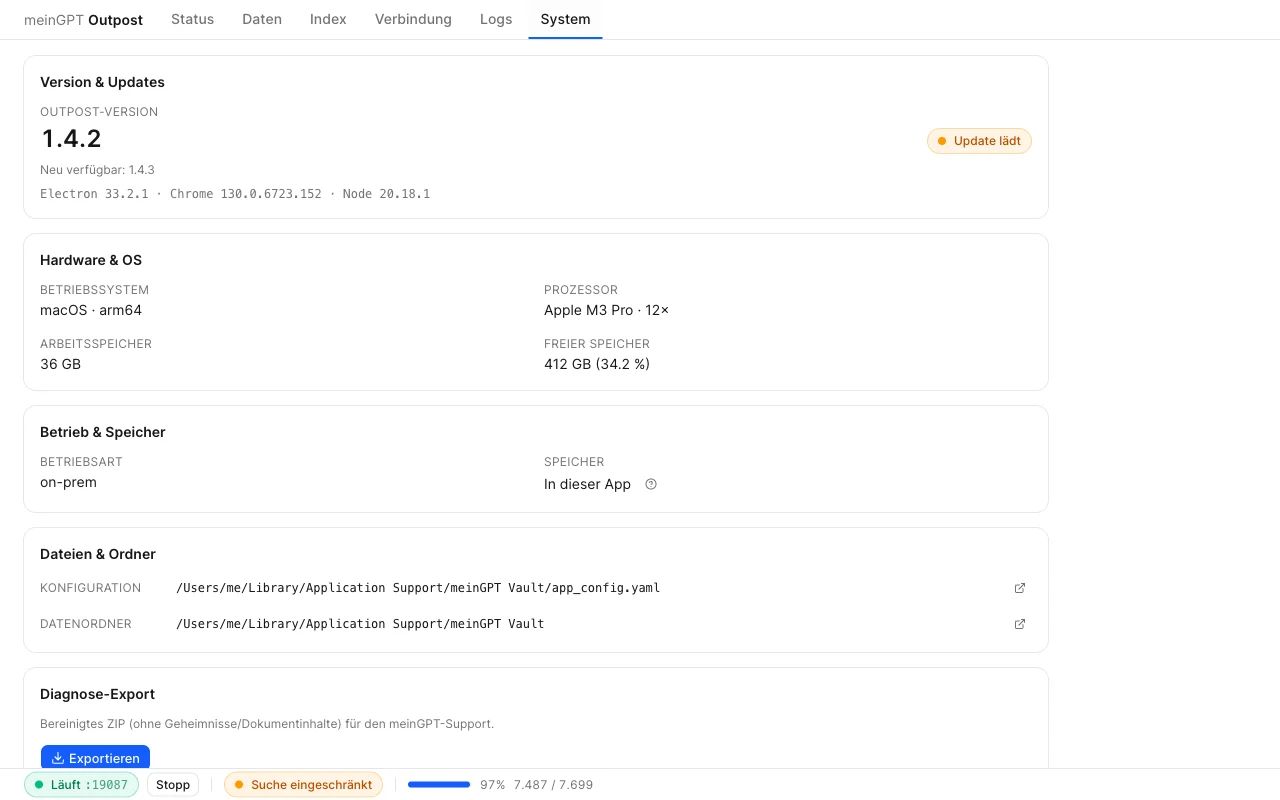
| System | Diagnostics, support, version, hardware and storage locations |
| Settings | Startup, compute budget, storage limit, language and appearance |
The status bar at the bottom of the window remains visible everywhere. It shows whether the local Outpost service is running and whether MeinGPT is connected. Start and Stop affect the service; they do not change the pairing or the stored shares.
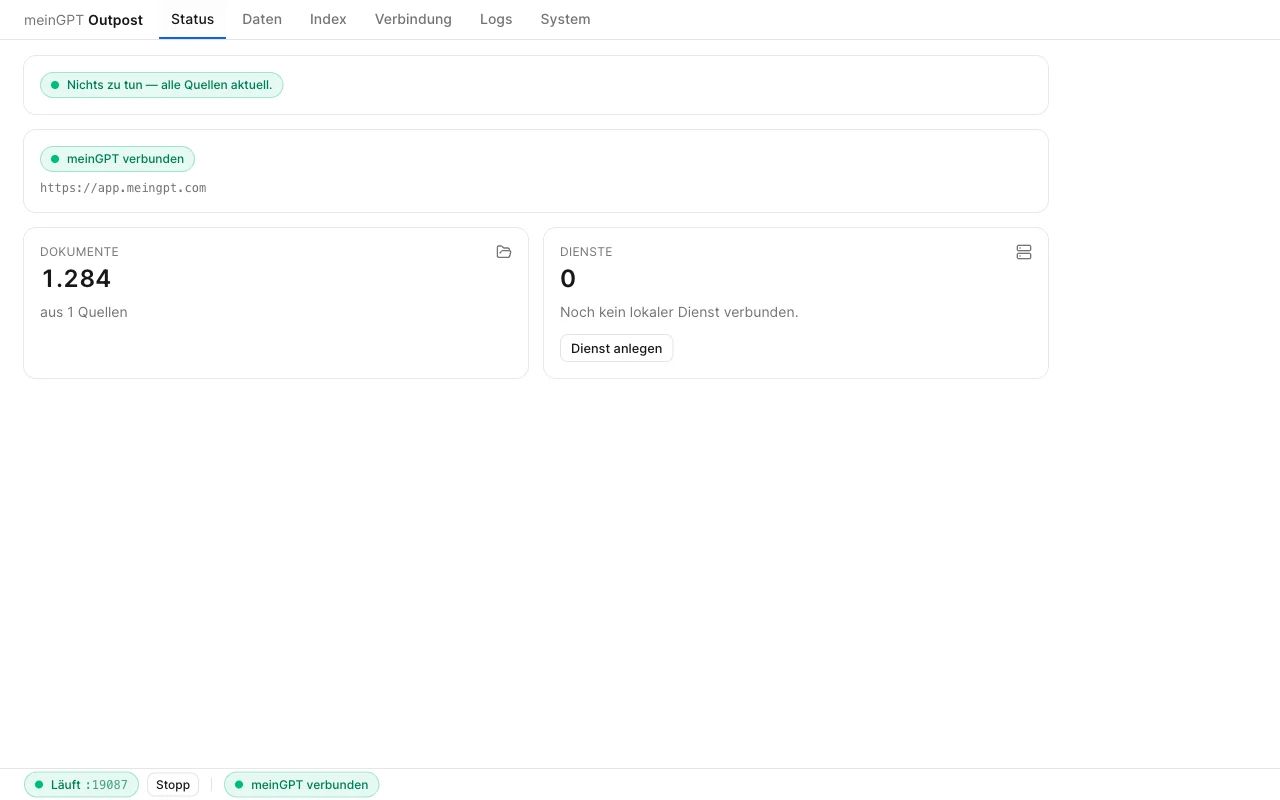
Status: four questions
The top row answers exactly four questions:
- Outpost: Is the local service running?
- Connection: Is MeinGPT connected?
- Search: Is at least one document usable?
- Background preparation: Is everything current, is work running, or are there exceptions?
Below that are only the global facts: searchable documents, searches during the past 24 hours, latest successful folder update and Outpost storage used. CPU, memory and individual index stages belong under Activity or in the folder's Processing view.
A vector index still being built is not an outage. Once text has been extracted, the pool can already be used; the keyword and vector indexes improve search afterward. Individual skipped files appear as exceptions without making an otherwise usable pool look failed.
Shares: one entry point for every local target
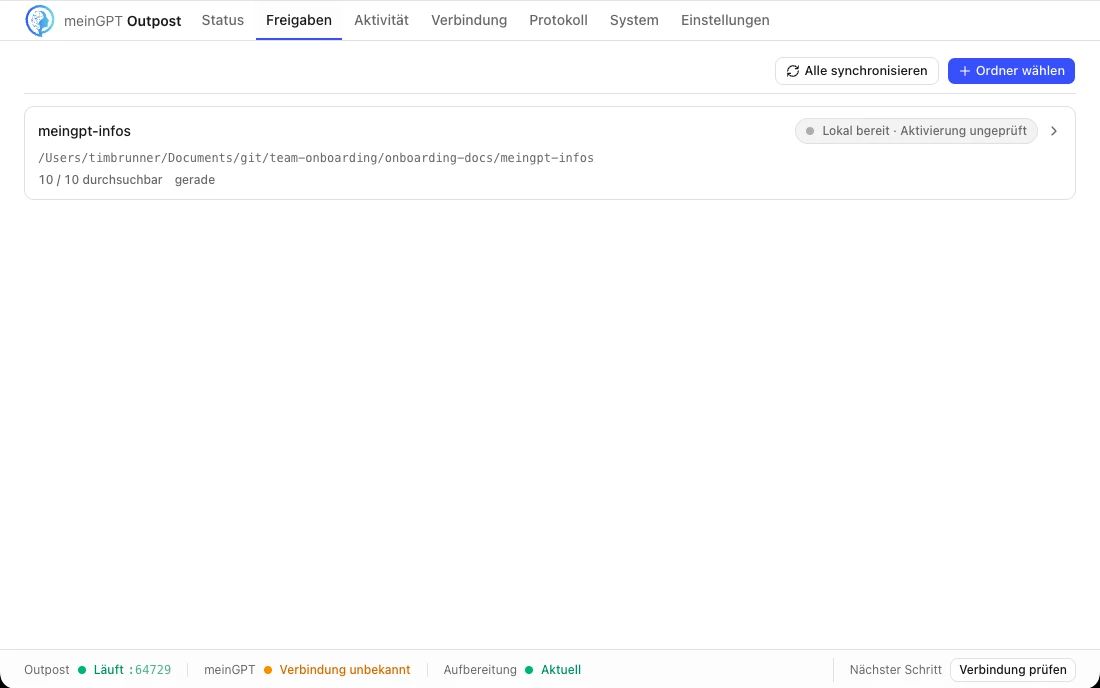
The list contains folders and, when the services preview is enabled, databases, MCP servers and HTTP APIs. Each row only shows the state that is useful for comparison: name or path, usability, size, exceptions and latest update. Read everything again starts another pass over every folder.
Folders
A folder has four detail areas:
| Area | Contents |
|---|---|
| Processing | File discovery, text extraction or OCR, keyword index and vector index with progress and exceptions |
| Source documents | File explorer, subfolders, file types and the concrete reason for files that could not be processed |
| Data access | Data retrieval by MeinGPT and local access to the source folder |
| Folder activity | Searches, synchronizations, configuration changes and failed operations for this folder |
There are three search targets under Processing:
| Search target | Result |
|---|---|
| Automatic (recommended) | The Outpost adds the vector index when it fits the configured storage limit and the system disk reserve. |
| Keyword search (full-text index) | Fast, relevance-ranked word search without a vector index. |
| Meaning search (vector index) | Keyword search plus semantic search; uses additional time and storage. |
Two decisions remain separate under Data access:
- Data retrieval: extracted text only, or original files too.
- Source folder: read-only, or read and write. Read and write lets MeinGPT create, edit, move, and recoverably delete text files in the released folder — details under A folder on this machine.
The release level is set on the Outpost and reported to MeinGPT as a device setting. In MeinGPT you then decide whether to adopt the reported folder as a data source and who may use it.
Database, MCP and HTTP
Services have Status, Data access and Activity. Status keeps four proofs separate: locally stored target, local check, report to MeinGPT and reachability from MeinGPT.
For PostgreSQL, schema inspection and SELECT are always allowed. INSERT, UPDATE and DELETE are enabled individually and checked against the effective database privileges. For MCP and HTTP, the Outpost fixes the local target; tool or API permissions are managed in MeinGPT, and cloud requests cannot redirect the target to another address.
If "Reachable from MeinGPT" does not turn green:
| State | Meaning | What you do |
|---|---|---|
| Registration pending | The service has not yet reported to MeinGPT. | Wait briefly; if it persists, check the pairing in the Connection area. |
| Connecting tunnel | The Outpost is setting up the connection between MeinGPT and the service. | Wait briefly, then check again. |
| Checking tunnel status | The Outpost has not yet received a tunnel status for this service. Right after creating the service this is normal. | If it stays for more than a few minutes, send the diagnostics via System → Report a problem. |
| Tunnel rejected | MeinGPT rejected the Outpost's pairing. | Pair the Outpost again in the Connection area. |
| Tunnel credential missing | The Outpost lacks a valid local credential for the tunnel. | Restart the Outpost. |
| Bridge route missing | MeinGPT cannot find a path to this service. | Check the MeinGPT URL configured in the Outpost. |
| Secure connection failed | Certificate validation or system time is off. | Check certificates and system time on the Outpost machine. |
| Tunnel offline | No connection to the service. | Check the network and restart the Outpost. |
Older Outpost versions permanently show "Not proven by a fresh end-to-end request" here, regardless of the actual state — update the Outpost first in that case. If the status stays red, export the diagnostics in the System area and contact support.
Activity: trends and capacity
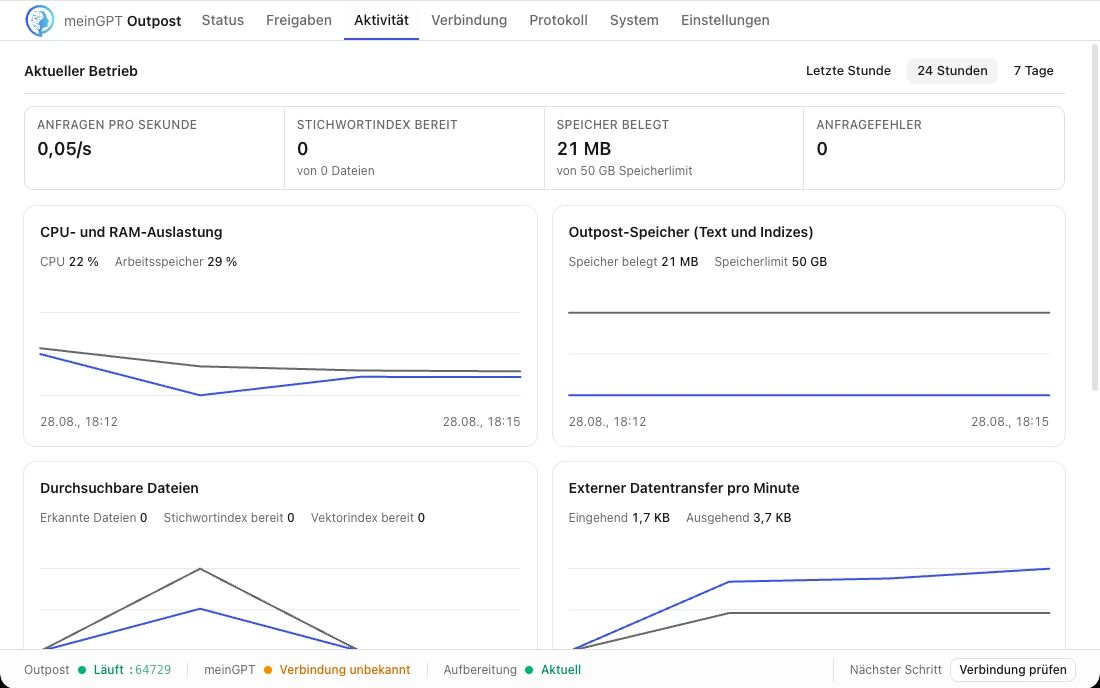
The global tab offers one-hour, 24-hour and seven-day ranges. It shows:
- requests per second and errors
- CPU and memory use
- Outpost storage used and configured storage limit
- observed, searchable and semantically indexed files
- inbound and outbound data transfer
- every share with a direct link to its details
This tab answers “How is operation developing?”. Individual operations and failure times live under Protocol.
Storage limit and warning
The storage limit defaults to 200 GiB (shown as “200 GB” in the application). Change it under Settings → Outpost storage limit. At 80%, Status and Settings display an amber warning with used storage, the limit and a way to open Settings. The support fleet view also shows the warning; it does not mean indexing is paused.
If the budget cannot accommodate the next indexing step, Outpost pauses indexing. Independently, disk protection pauses it when less than 512 MiB or 5% free space remains. In the first case, raise the limit if space is available; in the second, free space on the data volume.
Connection: pairing and network checks
Pairing connects this machine to the MeinGPT organization. Replace pairing creates a new key; Disconnect pairing separates the machine after confirmation.
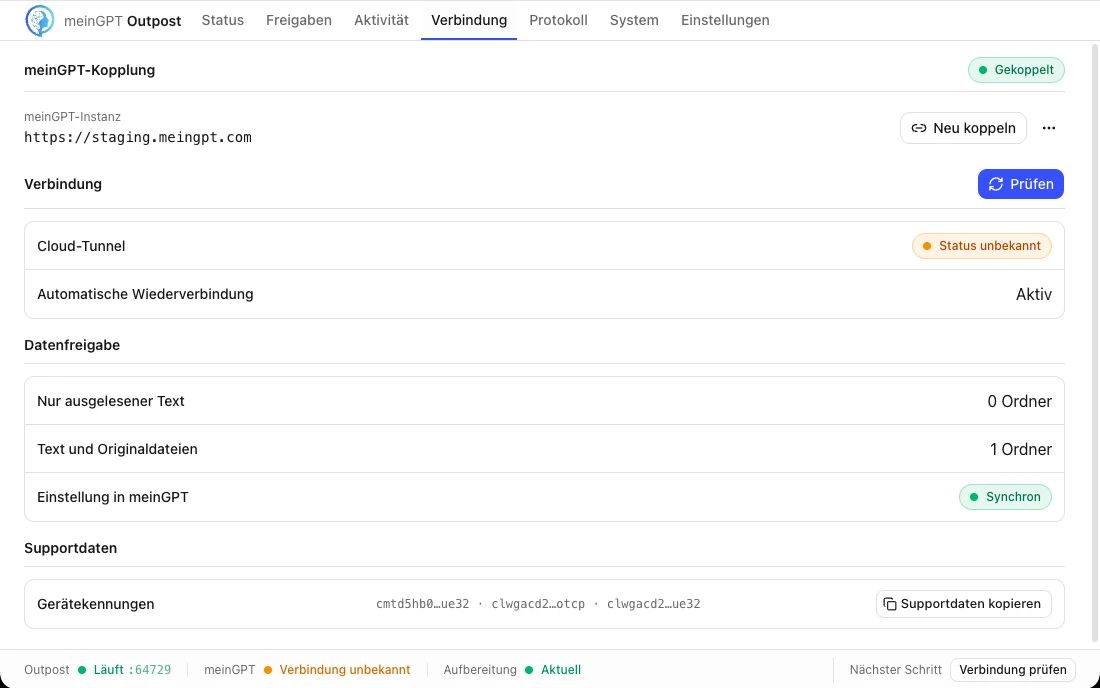
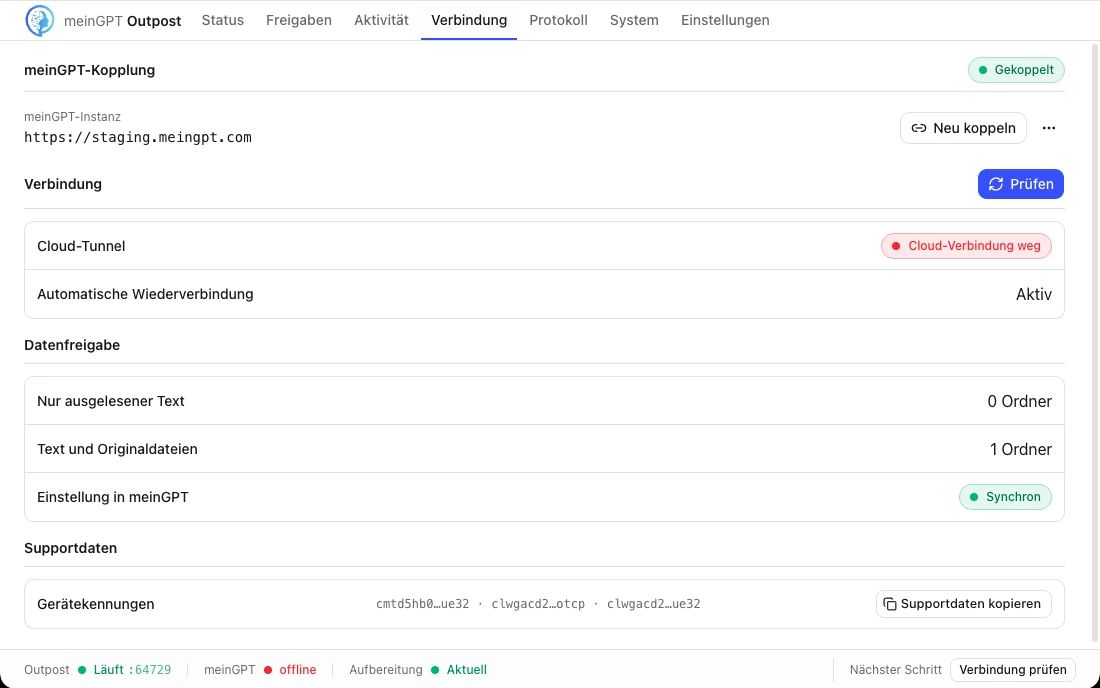
The Outpost reconnects automatically while it remains paired and the service is running. When a problem occurs, the connection check reports DNS, TCP, TLS, proxy, MeinGPT reachability and system clock separately. A failed row names the cause and the next action.
The Outpost opens the connection outbound. There is no inbound port and no firewall rule for incoming traffic.
Protocol: event or technical output
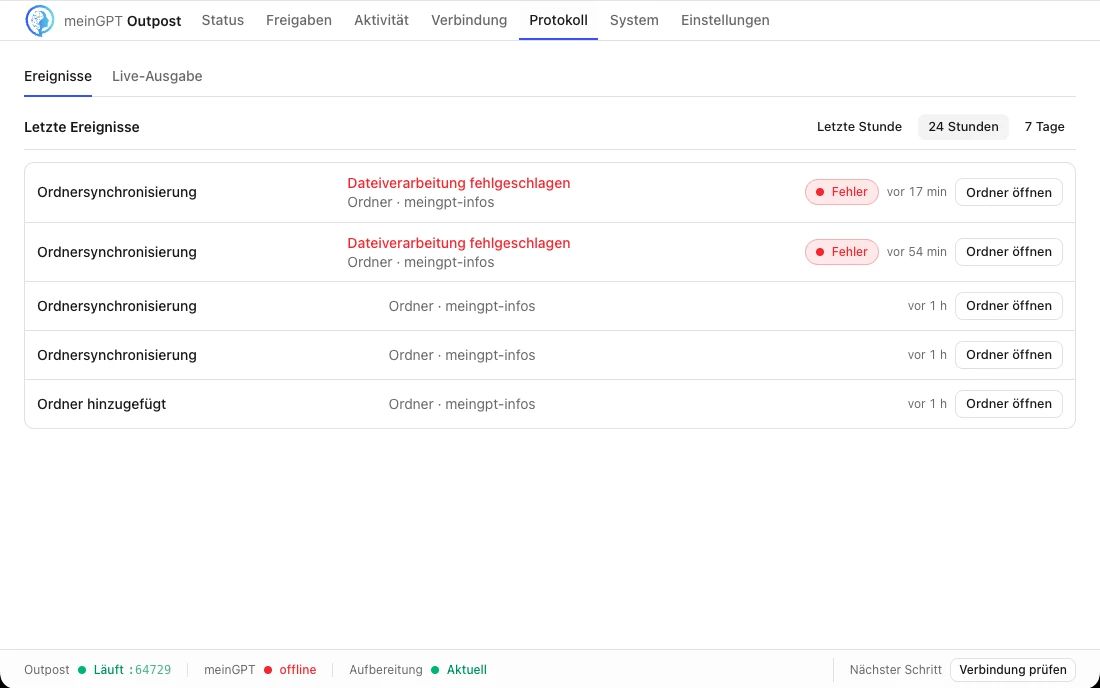
Events contains the durable history of searches, synchronizations, service requests and configuration changes. A failed event links to the affected folder or service and shows the recorded cause there.
Live output shows the current technical stream. For a support request, the sanitized diagnostics export under System is a better handoff than copied raw logs.
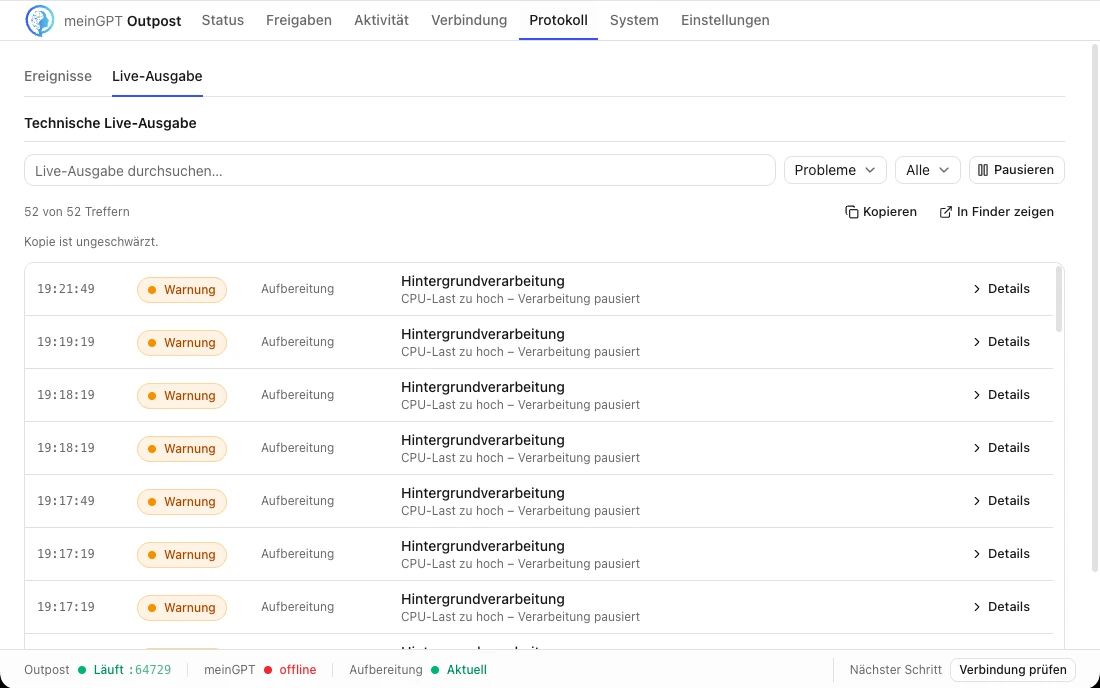
This warning appears when the whole machine's CPU load — not just the Outpost's own — is above the limit of the selected compute budget. The Outpost then automatically pauses all background work (processing, indexing) and resumes it once load drops; search is unaffected. If it keeps appearing even though the Outpost itself has little to do, check whether another process (antivirus scan, Windows Update, a backup) is generating load, or choose a more generous profile under Settings → Compute budget.
System and support
Support and recovery stay visible under System:
- support request and sanitized diagnostics export
- version, update state and signed installation
- operating system, CPU and memory
- metadata recovery when it is actually required
- configuration file and data folder
- compact support data with a copy action
The diagnostics export contains no document content and no secrets.
Don't save it into a watched folder
A manual export from the window saves the ZIP wherever you pick in the file dialog — unlike the automatic export under "Report a problem," which always lands in the Outpost's own data folder. Never choose a folder the Outpost is watching: it will read that ZIP file like any other file in that folder.
Common problems
| Symptom | Next action |
|---|---|
| Connected, but nothing is found | Check the status bar and start the Outpost service. Then open Shares. |
| Folder is ready locally but not usable in MeinGPT | Adopt the reported folder as a data source in MeinGPT and grant access. |
| A file is missing | Open folder → Source documents for the file, reason and possible action. |
| A file is "larger than the size limit" or reading "took longer than 60 seconds" | The file exceeds a fixed limit per file. Split the file or reduce its size; once it changes, the Outpost reads it again automatically. |
| Synchronization failed | Open folder → Folder activity and read the concrete error. |
| Vector index is still running | Use the pool through text or keyword search; follow progress under Processing. |
| Connection drops repeatedly | Open Connection and run the network check. |
| Repeated "CPU load too high – processing paused" warning | Reflects the machine's total CPU load, not just the Outpost's; processing resumes automatically once load drops. If visible load stays low, check other processes or pick a more generous compute budget under Settings. |
| Support needs technical details | Open System, export diagnostics and copy the support data. |