Create Outpost
How your Outpost pairs with MeinGPT — the machine generates the code, you confirm it
An Outpost is not created through a form in MeinGPT. You install the application on the machine (see Set up an Outpost), the application generates a code itself, and you confirm that code here in MeinGPT — this is also where you give the Outpost its name.
Open Outposts
Confirming a device requires admin access:
- Go to app.meingpt.com and log in
- Go to Settings → Outposts
Can't see Outposts?
You need administrator permissions for this workspace. Ask an admin to grant you access — or to approve the Outpost for you.
The machine generates the code
Start the pairing
Open the Outpost application on the machine. On the "Pairing" step, click "Start the pairing".
Read off the code and fingerprint phrase
The application now shows an eight-character code, a multi-word fingerprint phrase, and a button labeled "Approve this device in MeinGPT". There is no field on the machine itself to type anything into.
The code expires
A code is valid for ten minutes. If it expires before you confirm it, the application generates a new one with one click — nothing else needs doing on the machine.
Approve it in MeinGPT
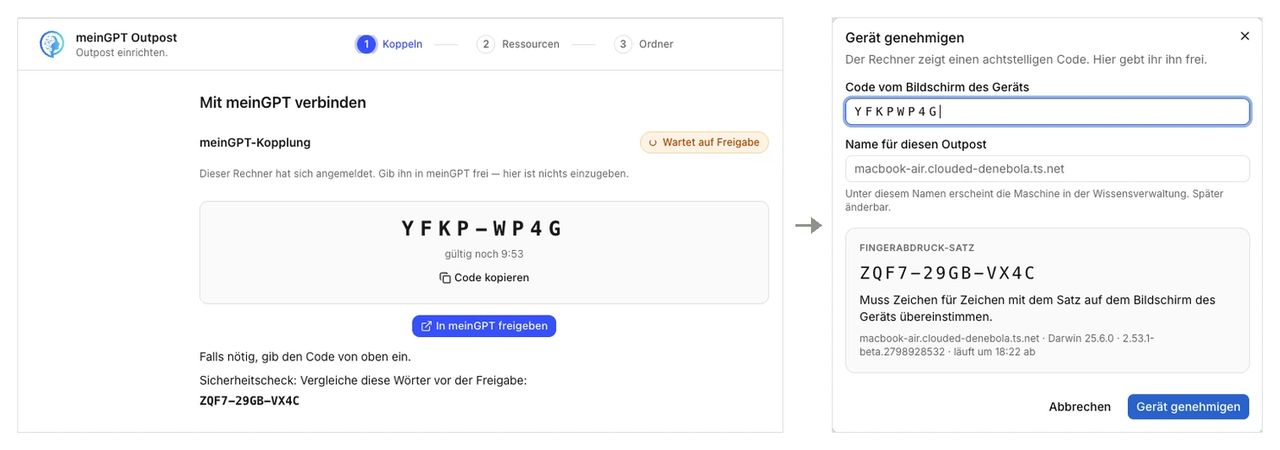
Open the code
Clicking "Approve this device in MeinGPT" on the machine opens Settings → Outposts in your browser with the code already filled in. If you're already there, type the code in by hand instead.
Compare the fingerprint phrase
MeinGPT shows the same fingerprint phrase as the machine. Compare both character for character — only once they match do you know you're really approving this machine, not a different one that happened to generate a code at the same time.
Name it and approve
Give the Outpost a name (e.g. "Production", "Engineering Docs") and click "Approve device". If this is the first machine for this Outpost, the entry is created at this moment.
Approved is not yet connected
Approving saves your decision. The machine is connected only once it checks in again with its new key — normally a matter of seconds. MeinGPT waits up to 30 seconds and then shows "Connected".
If pairing does not go through
After Start the pairing, the application shows the reason:
- "This code has expired. Start a new pairing on this device." — The code was valid for ten minutes. Choose Start the pairing again.
- "Couldn't reach MeinGPT. Check this machine's internet connection and that the firewall allows outbound HTTPS." — The application did not reach MeinGPT. A Check the connection button appears under the message. The allowlist is under What the firewall has to allow; if your network breaks TLS, see Your own root certificate.
- "MeinGPT returned an unexpected response. Try again or contact support." — MeinGPT answered, but not as expected. Check the connection appears here as well.
- "Only a MeinGPT address over HTTPS is allowed. Use https://app.meingpt.com." — The configured MeinGPT address is not an HTTPS MeinGPT address.
- "The approval was refused in MeinGPT. Ask an administrator there, then start a new pairing from here." — An admin refused the approval. Start a new pairing afterwards.
- "MeinGPT refused this machine's signature. …" — The pairing was ended in MeinGPT, or the machine's clock is wrong. Check the clock first, then pair again or disconnect.
- "MeinGPT Outpost could not carry out the pairing on this machine. The network is not the cause. Export the diagnostics bundle from Support and send it to us." — The application did not recognise the error as a network error; it failed on this machine. That is not proof that your network is fine. The technical reason is in
main-process.jsonlin thelogsfolder of the data folder, on the line with"event":"pairing_failed"(fielddetail). Before pairing there is no Support tab yet: create the bundle from the command line with--collect-diagnostics(see Outpost does not start) and send it to enterprise@meingpt.com.
Verify the connection
Once the Outpost is approved and started, its status in MeinGPT changes from Not connected to Connected.
If MeinGPT keeps saying "not connected", you check that on the Outpost machine, not here: the status bar at the bottom left has to read Running, and the Connection tab has a network check that tells you what is wrong. → Console & operations
Multiple Outposts
An organization can run more than one Outpost — for example, one for production and a second as a staging or second-site instance. Data pools are assigned to a specific Outpost, not to the organization as a whole — so when you create a data pool, choose which Outpost it runs on.
By default, an organization may register only one Outpost; a further registration attempt is refused, though any existing Outposts keep running unaffected. If you need more than one, contact MeinGPT — we raise the limit for you. Each additional Outpost gets its own ID and secret (or its own pairing code) when you create it, and shows up as its own entry in the Outpost list under Company Settings → Outposts. To add it, just repeat the steps above under "Create your Outpost" with a new, distinguishable name.
Next steps
Tip
Outpost paired. Now release folders on the machine. Services only appear when the separate preview is enabled for the workspace.