Who sees what
Who finds an Outpost's documents in MeinGPT, what is released along the way, and how Windows permissions (beta) come into play.
For documents on an Outpost there are three layers, which you set in two places:
| Layer | Question | Where it is set |
|---|---|---|
| Sharing in MeinGPT | Who finds the data source at all? | MeinGPT |
| Release level | What leaves the machine — text only, or the original file too? | Outpost, per folder |
| Windows permissions (beta) | Which files in it may the individual person see? | Outpost, per folder |
A person finds a document only if every enabled layer allows it. No layer can extend another.
After adoption, only admins see it
When you adopt a reported folder under Settings → Outposts → Manage → Shares with Use as source, the new data source is at first visible only to workspace admins. Nobody else finds it, not even through an assistant.
On the Outpost card, Add folders as sources opens the Shares tab directly. After adoption, the card shows Admins only; after sharing, it shows Whole organization or Shared with selected people or teams.
Admins see every data source
Workspace admins have access to every data source, regardless of sharing. So check whether a share works with an account that does not have the admin role.
Sharing the data source
Only workspace admins can share. You reach the sharing dialog in two places:
- on the Outpost card under Settings → Outposts, via Access in the data source's row
- on the data source's page, in the Teams tab, via Manage access
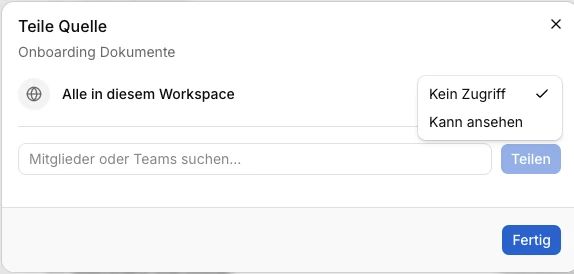
You share the data source with:
- Everyone in this workspace
- individual members
- teams — all current members of the team, including people who join later
There is one level: Can view. Whoever has it finds the documents in search and chat. Only an admin can change or pass on sharing. Remove access takes a share back immediately.
Assistants and chat
An assistant cannot be given access — only people and teams can. If you attach a data source to an assistant as knowledge, every use applies the sharing of the person who is chatting:
- If they have access, the assistant searches the data source.
- If they do not, the assistant leaves the data source out and answers without those documents. Chat shows a notice that at least one configured source is unavailable.
So share the data source with everyone who should use the assistant. In chat, each person can only attach data sources that are shared with them. Citations and downloads also check sharing on every call.
Release level: what leaves
How much a folder releases is set on the machine: in the Outpost under Shares → folder → Data access, section Data retrieval.
| In the Outpost | Shown in MeinGPT | What is released |
|---|---|---|
| Extracted text only (default) | Text only | Matching passages with their adjacent text, and the file name |
| Text and original files | Original files | Additionally the original file, for example to open it from a citation |
The level cannot be changed in MeinGPT; it is only displayed there. Background: Security.
In the same tab, under Source folder, you set whether MeinGPT may only read files in the folder (Read only, default) or also create, edit, move and delete them (Read and write source files). Writing is limited to text files up to 48 KB (such as .txt, .md, .csv, .json, .xml, .yaml) and only possible for people the data source is shared with.
If nothing should leave for a while, choose Pause release from the Outpost card's menu. The machine keeps indexing; search and chat get nothing from this Outpost until you choose Resume release.
Windows permissions (beta)
Without this feature: whoever may see the data source finds everything in it — NTFS, Active Directory and file permissions are not carried over. Your split into data sources is then your permission model.
With Apply Windows permissions, access additionally follows each individual person's NTFS permissions. This applies to search, opening originals and write access.
Requirements
- The beta is enabled for your workspace. We do that; talk to your account contact.
- The Outpost runs on Windows.
- The folder is a local NTFS folder on this machine. Network drives, UNC paths (
\\server\share), and any reparse point along the way to it (junction, mount point, DFS link) are rejected — even if it points to a local disk itself. A folder you enter as a network path can still be shared: the Outpost sets it to Same access for everyone and says so while you add it (see SMB share). If a path looks local but turns out to be on a share, the Outpost does not switch the mode for you: it returns to the User-specific access step, where you choose Same access for everyone.
Setting it up
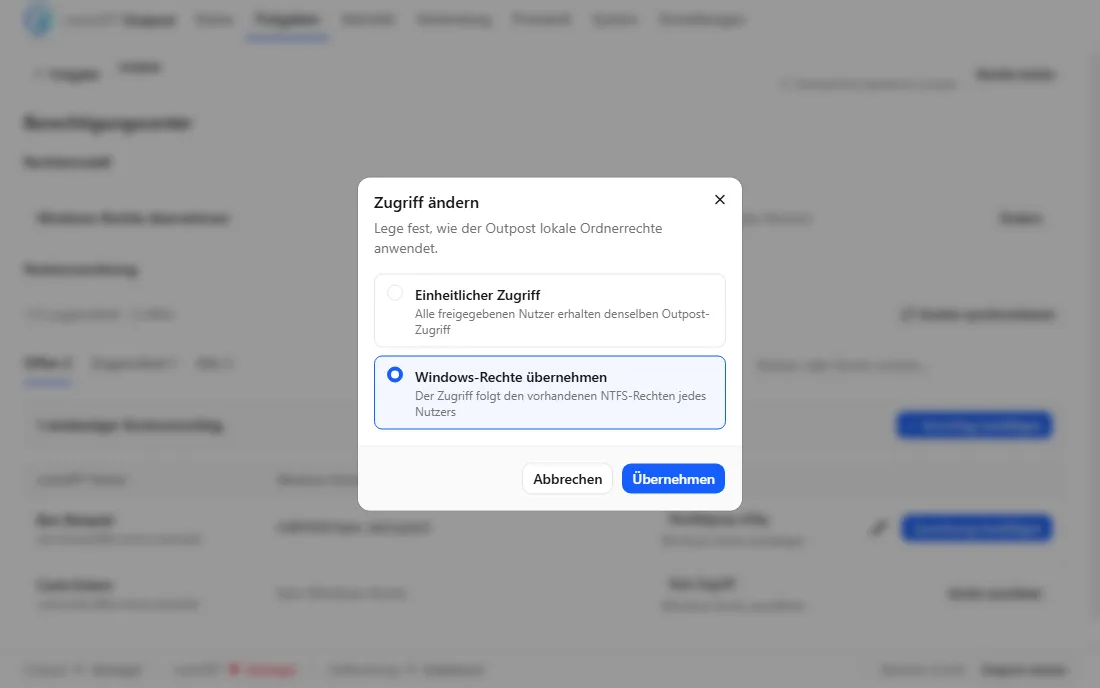
Choose the mode on the folder
In the Outpost under Shares → folder → Data access, section User-specific access, choose Apply Windows permissions instead of Same access for everyone. Once the beta is enabled, newly shared folders already start in this mode, except folders entered as a network path, which use Same access for everyone; existing folders stay as they are.
Map people to Windows accounts
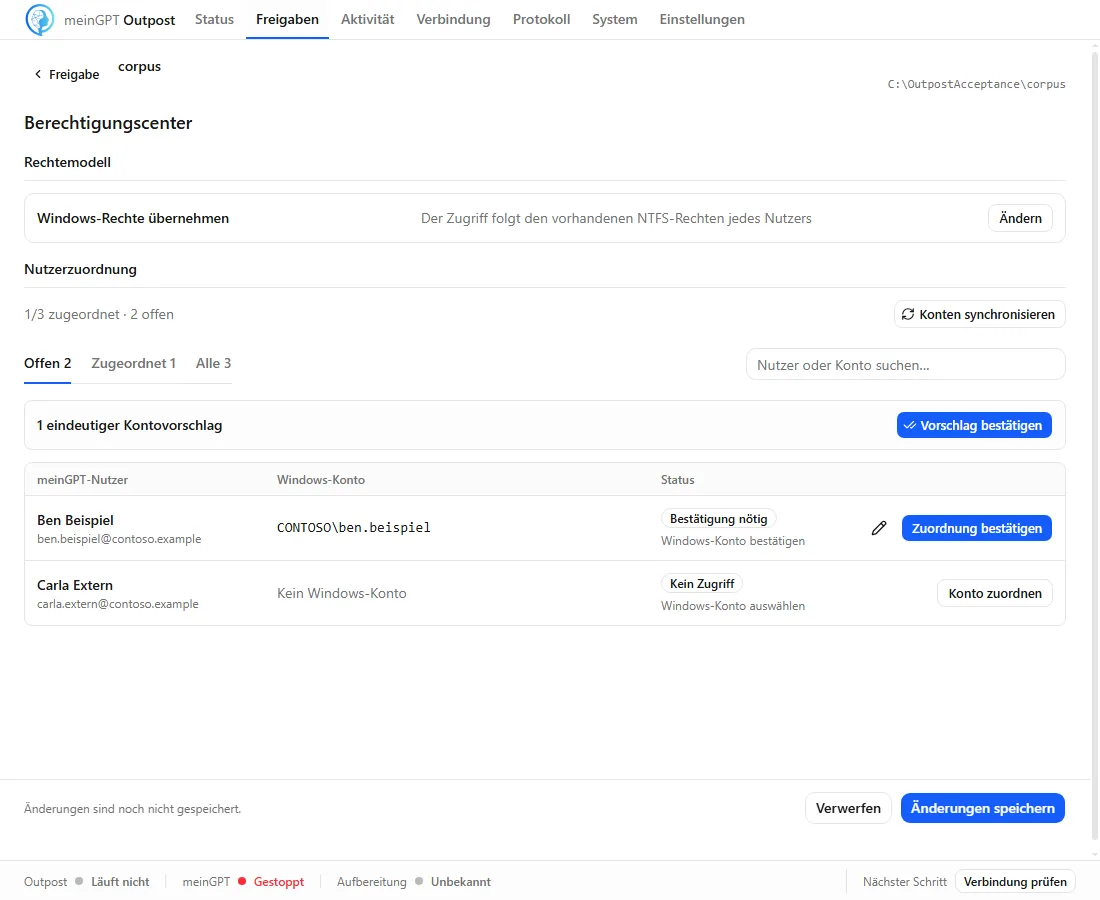
Configure folder permissions opens the Folder permission center. It
lists every person in the workspace with their Windows account. For people
who sign in through Entra ID, the Outpost suggests the matching account —
you confirm the suggestions. You map everyone else manually, for example to
CONTOSO\alexander.taylor.
Only a single user account can be mapped, not a security group — if you
manage NTFS permissions through AD groups, map each person's own account
anyway.
Check with one file
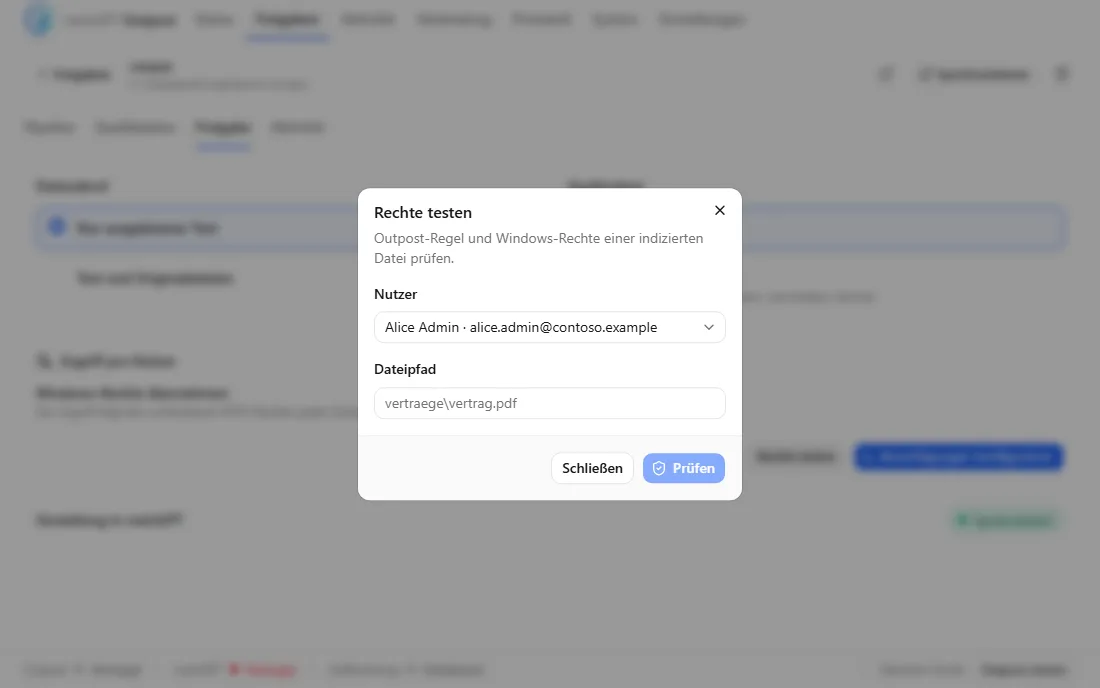
Under Test access rights, pick a person and enter the path of an indexed
file under Relative file path, relative to the shared folder: for
C:\Data\contracts\contract.pdf in the folder C:\Data, that is
contracts/contract.pdf. You see whether searching, opening and writing
are allowed — and whether an Outpost policy or Windows blocks it.
What you should know
- No mapping, no access. Anyone without a mapped Windows account gets nothing from this folder — workspace admins included. The permission center lists such a person as Access unavailable.
- Requests not made on behalf of a person get nothing from such folders either.
- During the first read, the folder shows Preparing permissions; until then it is not searched.
- Permission changes are checked directly against Windows every time something is released. If you remove someone's NTFS permission on a file, that person no longer gets it from that moment on.
- Sharing in MeinGPT still applies. Windows permissions narrow access within a data source; they never extend it. Anyone who may not see the data source in MeinGPT finds nothing, even with NTFS permissions.
- Up to 1,000 mapped people per data source. Larger workspaces don't yet have server-side search with pagination in the permission center.
- Very fine-grained permissions can block search entirely. If a folder has more than 4,096 distinct NTFS permission combinations, search fails completely for that folder instead of just leaving out individual files.
- If Windows cannot use a mapped account, the person gets nothing from the folder — for example when the account was deleted, disabled or locked, the domain controller cannot be reached, or this computer may not read the account from the directory. The permission center flags such mappings when it opens and on Synchronize Windows accounts; Test access rights and the Folder activity tab name the reason. In chat, the person learns that they lack access to the source — or, if the directory does not answer or may not be read, that the source is temporarily unavailable.
- If the mapped Windows account is recreated in Entra, for example during an account reset, access pauses automatically. From that moment on the person gets nothing from the folder until you re-confirm the mapping in the permission center.
Databases and MCP servers
Services you connect through an Outpost in the services preview follow the same pattern: after they are created, only an admin sees them. You share them on the Outpost card via Access (dialog Share Service) with everyone, members or teams. Whether a database may only be read or also written is set on the machine.
For services, the Outpost card also shows Admins only, Whole organization, or Shared with selected people or teams according to the actual sharing settings.
Taking access away
| You want to … | How |
|---|---|
| take access away from a person or a team | sharing dialog → Remove access |
| remove a data source from MeinGPT | data source's page → Remove source. The folder and local index stay on the Outpost; you can adopt the folder again later. |
| stop anything from leaving an Outpost immediately | Outpost card menu → Pause release |