Assistants
AI assistant endpoints
https://app.meingpt.com/api/assistants/v1/Get available assistants
Retrieves all assistants available to the authenticated user
🔒 ApiKeyAuth
Parameter
| Parameter | In | Typ | Beschreibung |
|---|---|---|---|
| Authorization* | header | string | API key for authentication. Use 'Bearer <your-api-key>' format. |
Responses
| Feld | Typ | Beschreibung |
|---|---|---|
| assistants | Array<object> |
| Feld | Typ | Beschreibung |
|---|---|---|
| status | string | |
| message | string |
https://app.meingpt.com/api/assistants/v1/{assistantId}/runRun an assistant
Executes an assistant with the provided messages and returns the assistant's response with tool calls and reasoning. Alternatively, you can use `multipart/form-data` to include files. In that case, send `messages` as a JSON string and upload files via `files`.
🔒 ApiKeyAuth
Parameter
| Parameter | In | Typ | Beschreibung |
|---|---|---|---|
| Authorization* | header | string | API key for authentication. Use 'Bearer <your-api-key>' format. |
| assistantId* | path | string | The assistant ID |
Request Body · application/json
| Feld | Typ | Beschreibung |
|---|---|---|
| messages* | Array<ChatMessage> |
Responses
| Feld | Typ | Beschreibung |
|---|---|---|
| text | string | The assistant's response text |
| model | string | The model used for generation |
| messages | Array<object> | The assistant's response messages including tool calls and reasoning |
| usage | object | |
| citations | Array<string> | Citations from tool usage |
| Feld | Typ | Beschreibung |
|---|---|---|
| status | string | |
| message | string |
| Feld | Typ | Beschreibung |
|---|---|---|
| status | string | |
| message | string |
| Feld | Typ | Beschreibung |
|---|---|---|
| status | string | |
| message | string |
Timing for Synchronous API Calls
An assistant run via the API is synchronous and provides no separate status or polling endpoint. The request stays open until the assistant finishes or an infrastructure timeout occurs, typically around five minutes. This is independent of your own HTTP client's timeout — if your client's timeout is shorter, it aborts the connection first and you never see the assistant's response, even though the run may have kept going server-side. Configure your client's timeout to cover the expected run duration. Processing large or multiple files, complex tool calls, or large outputs can push a run into this window. Plan accordingly for long-running calls, or trigger them asynchronously via an external automation (e.g. Make) that checks completion separately.
Attaching files to an assistant run
You can attach files to an assistant run. The size limit is 50 MB per file; details are in the API reference.
Note
Connectors (e.g. Outlook, SharePoint, Confluence) attached to an assistant are available on an assistant run via the external API. They resolve against the connections of the user account owning the API key being used — that account has to have connected the service itself. This holds for every personal connection (OAuth connectors and your own MCP servers): another member's connection is never used, so an assistant whose connector is not connected under the API key's account simply runs without it. The exception are team-shared custom MCP servers authenticating through fixed headers stored with the server: those act as a service account and work for every caller, exactly as they do in chat.
Built-in tools follow their own, stricter rule:
Attention
Certain built-in tools are also not automatically available on an assistant run via the external API, even if they're visible for the same assistant in interactive chat: web search, the Code Sandbox, slide generation, artifacts (documents), and image generation are, in chat, partly enabled only through a chat-wide toggle rather than being permanently saved on the assistant. Via the API, they're only available if explicitly attached as a tool on the assistant itself (the "Tools" tab in the assistant editor). Data pools, files uploaded directly to the assistant, and the Meetings knowledge source are not affected by this - they're stored on the assistant itself and work via the API the same way they do in chat.
Note
Data pools (data sources / RAG) attached to an assistant are available on an assistant run via the external API too. This requires that the user account owning the API key being used has been granted access to that data pool (see the "Access control" section in the data pools document) — independent of who the assistant itself was shared with. You check or change a data pool's sharing settings under Settings → Data sources, an area only visible to workspace admins. If you are not an admin yourself, ask an admin to check the sharing settings for the affected data pool, even if you created the assistant yourself.
Reading the model's reasoning content
For models that produce a visible thinking step (the "Reasoning tag" models — see Models), that reasoning is included in the messages array of the run response, not in text. It shows up as one or more content parts with type: "reasoning" inside an assistant message, alongside type: "text" and any tool-call parts:
{
  "role": "assistant",
  "content": [
    { "type": "reasoning", "text": "..." },
    { "type": "text", "text": "..." }
  ]
}
To extract it, iterate over messages, keep the entries with role: "assistant", and collect the text of every content part where type is "reasoning".
This applies to the Assistants Run API only. The Completions API does not return reasoning content - its response only contains choices[0].message.content and tool_calls, with no equivalent field.
Whether reasoning parts are present, and how detailed they are, depends on the model and its reasoning effort - some models reason internally without emitting a visible trace at all, and reasoning effort/level can't currently be set via the API (see Completions).
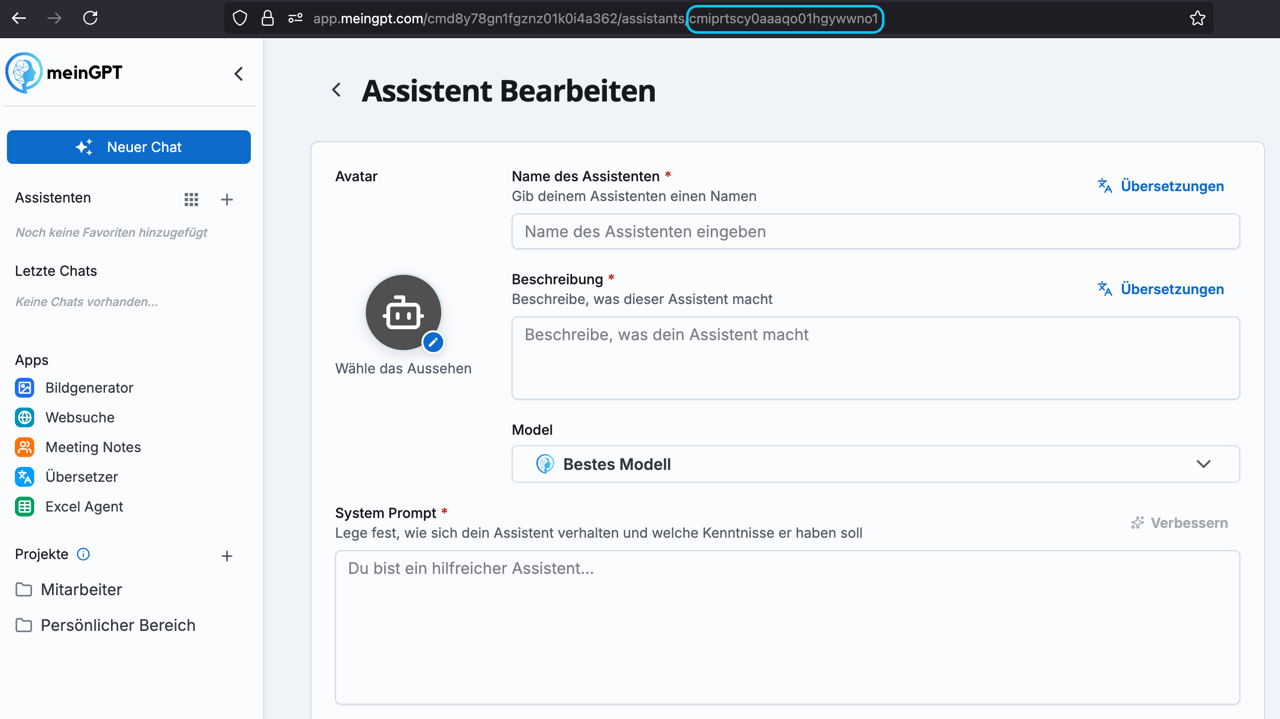
Finding the AssistantId
- Go to edit mode for your assistant
- In the URL, you'll find the AssistantId after
/assistants/